Every PC gamer knows the moment: something impossible happens on screen, your hand flies to the screenshot key — and nothing happens, or the wrong thing happens. That is because on PC there is no single screenshot button. Steam, NVIDIA's overlay, Xbox Game Bar and Windows itself all capture screens, each with its own shortcut and its own save folder. This guide maps all of them, so you always know which key to press and where the file went.
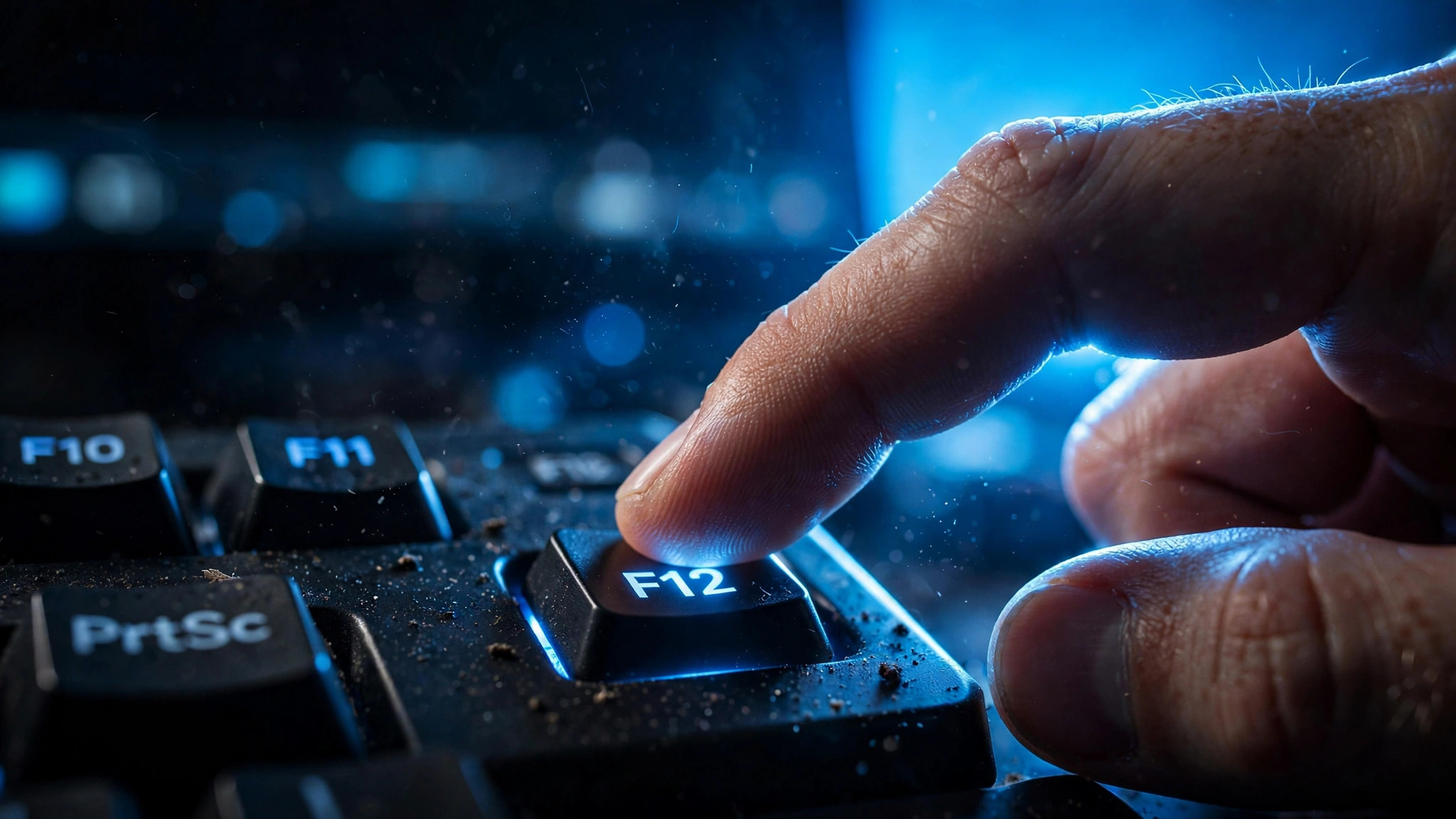
Take a screenshot in Steam: press F12
If the game runs through Steam, the screenshot tool is already there. Press F12 at any moment and Steam captures the frame, plays a confirmation sound and flashes a thumbnail in the corner of the screen.
- Press
F12while playing. It works in fullscreen and borderless windowed modes. - In the Steam client, open
View > Screenshots. - Choose the game from the dropdown to browse every capture.
- Select a shot and click
Show on Diskto open its folder.
Steam stores captures in per-game folders under your Steam installation, in the pattern userdata\<your-id>\760\remote\<app-id>\screenshots. Use the Screenshots manager rather than digging through those folders yourself. To change the key, go to Steam > Settings > In Game and set Screenshot shortcut keys. Captures are saved as JPEGs, and you can upload favourites to your profile straight from the manager.
Take a screenshot with NVIDIA: press Alt+F1
On an NVIDIA GPU with the NVIDIA App (formerly GeForce Experience) installed and the in-game overlay enabled, press Alt+F1 to save a screenshot at full resolution. Press Alt+Z to open the overlay, where the Gallery collects your captures.
NVIDIA saves each screenshot to your Videos folder, inside a subfolder named after the game. To remap the shortcuts, open the overlay with Alt+Z, then Settings > Keyboard shortcuts. Some supported games also offer Alt+F2 photo mode for free-camera shots with filters — a bonus where it exists, not a standard feature.
Take a screenshot with Xbox Game Bar: press Win+Alt+PrtScn
Xbox Game Bar ships with Windows 10 and 11 and works in any game, Steam or not. Press Win+Alt+PrtScn to capture the active game window, or press Win+G to open the bar and hit the camera button in the Capture widget. Captures land in Videos\Captures, and you can browse them in the bar's Gallery widget. This is the most reliable option for games bought outside Steam — from the Epic Games Store, GOG or anywhere else.
Windows' own shortcuts, no overlay needed
Sometimes you want a shot of a launcher, a menu or an error message rather than the game itself. Windows has built-in shortcuts that work everywhere:
| Shortcut | What it does | Where it goes |
|---|---|---|
Win+PrtScn | Captures the whole screen | Saved automatically to Pictures\Screenshots |
PrtScn | Copies the whole screen to the clipboard | Paste into Paint, Discord or anywhere |
Alt+PrtScn | Copies only the active window to the clipboard | Paste where you need it |
Win+Shift+S | Opens the snipping overlay for a region | Copied to the clipboard; save it manually |
On current Windows 11 installs, pressing PrtScn alone opens the Snipping Tool rather than copying silently — Win+PrtScn is the shortcut that saves a file with no extra steps.
Cheat sheet: every tool, shortcut and folder
| Tool | Default shortcut | Where the file goes | Change it in |
|---|---|---|---|
| Steam | F12 | Per-game folders — open via View > Screenshots > Show on Disk | Steam > Settings > In Game |
| NVIDIA overlay | Alt+F1 | Videos, in a folder named after the game | Overlay (Alt+Z) > Settings > Keyboard shortcuts |
| Xbox Game Bar | Win+Alt+PrtScn | Videos\Captures | Settings > Gaming > Xbox Game Bar |
| Windows | Win+PrtScn | Pictures\Screenshots | Fixed — cannot be changed |
On Steam Deck: Steam button + R1
On Valve's handheld, press the Steam button and R1 together to capture the screen. Find your shots in the Media section of the Steam menu, where you can upload them, and copy them to a USB drive from desktop mode if you want the raw files.
Screenshots not working? Check these
- The overlay is off. Steam: right-click the game, open
Properties > Generaland tick the overlay option. NVIDIA: the in-game overlay toggle in the NVIDIA App. Game Bar:Settings > Gaming > Xbox Game Bar. - The game grabbed the key first. Some games bind
F12themselves — remap the screenshot key instead of fighting the game for it. - Exclusive fullscreen blocks overlays. Borderless windowed mode is friendlier to every capture tool on this page.
- HDR shots look washed out. An HDR capture viewed on an SDR display can look flat; that is the tone mapping, not a broken file.
What to do with the screenshot
A capture sitting in a folder helps nobody. Steam's Screenshots manager lets you upload shots to your profile, where friends can see and comment on them, with visibility set to public or friends-only. For sharing elsewhere — Discord, forums, social media — upload the file directly. PNGs from NVIDIA and Game Bar survive re-uploads better than Steam's already-compressed JPEGs when quality matters to you.
Want video instead of stills?
Screenshots are single frames. If you want moving footage, Steam, NVIDIA and Game Bar all record video as well — our guide to recording gameplay on PC without losing FPS covers the best settings for each. And if you want the numbers in the corner of your captures, see how to show FPS in any PC game.