Your monitor is the one part of your PC you stare at for every hour you play. A great graphics card on a bad monitor still looks bad — and an average card on a great monitor often feels better than it should. Yet most buying guides drown you in specs without telling you which ones actually matter for your games and your GPU.
This guide cuts through the noise. You only need to make five decisions: resolution, refresh rate, panel type, adaptive sync, and connectivity. Get those right and everything else — curved or flat, RGB stand, built-in speakers — is decoration.
1. Resolution: buy for the GPU you have, not the one you want
Resolution determines how sharp the image looks and how hard your graphics card works. The two go together, and ignoring that pairing is the single most common monitor-buying mistake.
- 1080p (Full HD): still the competitive gamer’s resolution. Easy for any modern GPU to push past 240 fps, which is why esports players pair it with the fastest panels.
- 1440p (QHD): the sweet spot for most PC gamers in 2026. Roughly 78% more pixels than 1080p, visibly sharper, and modern mid-range cards handle it at 165–240 Hz without breaking a sweat.
- 4K (UHD): stunning in single-player and cinematic games, but demands a high-end GPU to sustain high frame rates. Pairing a 4K 144 Hz monitor with an entry-level card is the classic mismatch.
- Ultrawide (3440×1440): a different beast — more horizontal field of view, brilliant for racing games, sims and immersive RPGs, but roughly a third more pixels than 1440p to render.
As a rough match for current hardware:
| GPU class | Comfortable target | Example cards |
|---|---|---|
| Entry level | 1080p at 144–180 Hz | RTX 5050, RX 7600 class |
| Mid-range | 1440p at 165–240 Hz | RTX 5060 Ti, RX 9060 XT class |
| Upper mid-range | 1440p at 240 Hz+ or 4K at 144 Hz with upscaling | RTX 5070 Ti, RX 9070 XT class |
| Flagship | 4K at 240 Hz | RTX 5080, RTX 5090 class |
Esports titles like Valorant and CS2 run far faster than AAA blockbusters, so competitive players can aim one tier higher than the table suggests.
2. Refresh rate: 144 Hz is the new minimum
Refresh rate — measured in hertz — is how many frames per second your monitor can display. The jump from 60 Hz to 144 Hz is dramatic and immediately noticeable: motion looks cleaner, aiming feels more connected, and input lag drops.
- 144 Hz: the minimum worth targeting for gaming in 2026. Budget 144 Hz IPS monitors are now genuinely affordable, so there is no reason to buy 60 or 75 Hz for a gaming PC.
- 165–240 Hz: the meaningful upgrade for competitive shooters. Diminishing returns start here for strategy games and RPGs, but FPS players will feel it.
- 360 Hz and above: for professional esports players and people who have already optimized everything else. Marginal for the rest of us.
One warning: a high refresh rate only helps if your PC can actually produce the frames. A 240 Hz monitor locked to 60 fps in-game feels identical to a 60 Hz monitor. Check your frame rates in the games you play before paying for hertz you cannot use.
3. Panel type: IPS vs VA vs OLED
The panel is the technology inside the screen, and it defines colours, contrast and motion clarity:
| Panel | Strengths | Weaknesses | Best for |
|---|---|---|---|
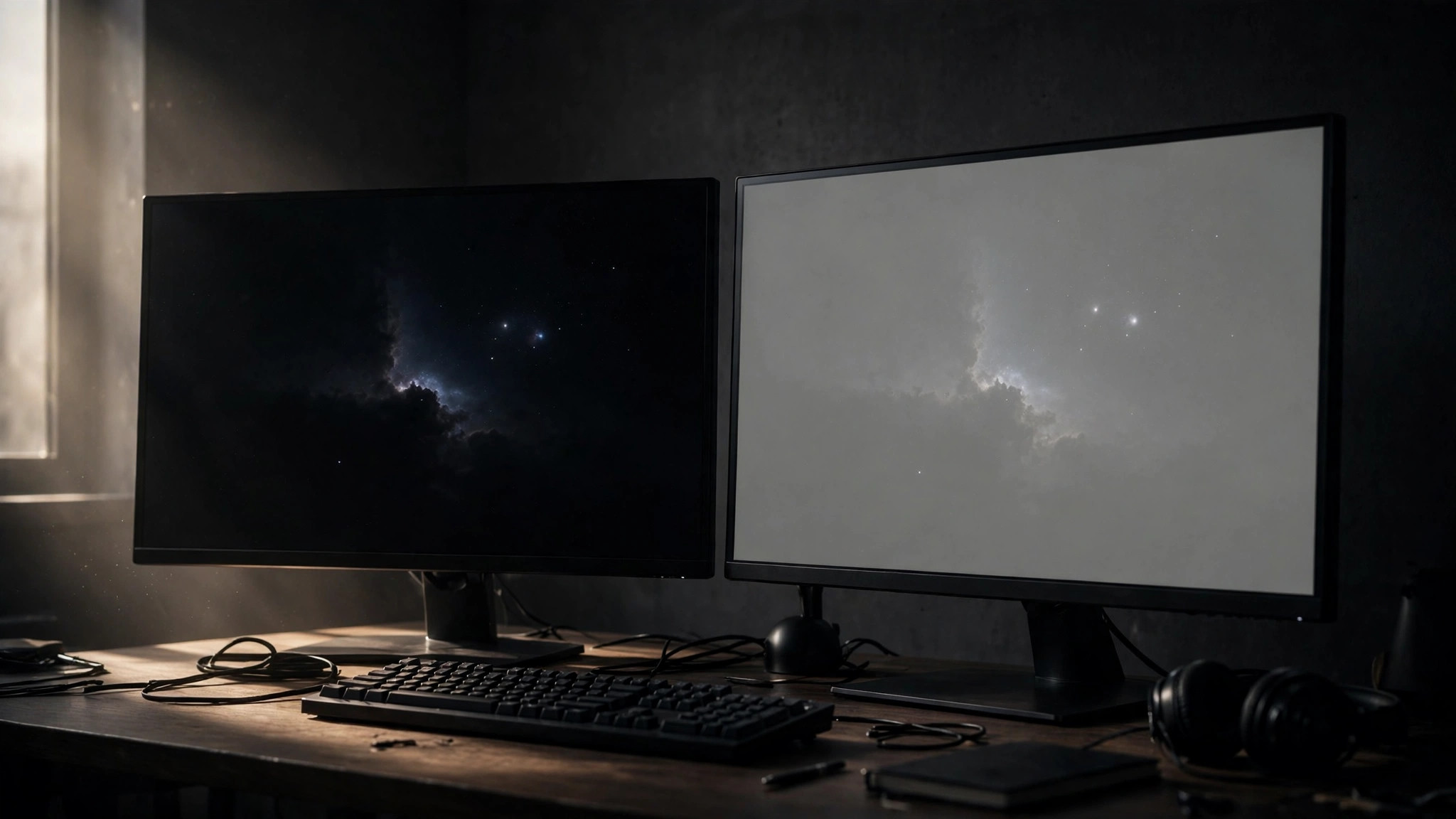
| IPS | Accurate colours, wide viewing angles, fast response | Contrast ~1,000:1 — blacks look grey in dark rooms | All-rounders, well-lit rooms, value buyers |
| VA | 3–6× the contrast of IPS, deep blacks, good value | Slower dark-scene response can smear fast motion | Cinematic single-player games in dim rooms |
| OLED | Perfect blacks, near-instant response, best image quality | Costly, lower full-screen brightness, some burn-in risk | Premium pick for players who want the best picture |
| Mini-LED | Very bright, excellent HDR, no burn-in | Expensive, can show halo/blooming around bright objects | Bright rooms, HDR showcase games |
TN panels — once the esports standard — are now a niche pick for players chasing every last millisecond. For most buyers, IPS is the safe default and OLED is the aspirational upgrade.
About OLED burn-in: modern OLED monitors fight it with pixel shifting, automatic panel refresh cycles and heatsinks. The risk is highest with static elements shown for hours daily — taskbars, HUDs, productivity windows. Mitigate it with a dark theme, auto-hiding taskbar and letting the monitor run its maintenance cycles. Look for a warranty that explicitly covers burn-in (two to three years is common). Mixed gaming and media use is generally fine.
4. Adaptive sync: make every frame smooth
Screen tearing happens when your GPU sends frames faster or slower than the monitor’s fixed refresh cycle. Adaptive sync solves it by letting the monitor’s refresh rate follow your GPU’s frame rate in real time. In 2026 it is a must-have, and it is nearly standard on gaming monitors.
- NVIDIA G-Sync: hardware-module monitors (expensive, the premium tier), G-Sync Compatible (certified Adaptive-Sync monitors) and — via HDMI 2.1 VRR — support over HDMI on newer displays. Over DisplayPort, G-Sync support is the most robust option for NVIDIA cards.
- AMD FreeSync: works over both DisplayPort and HDMI depending on the monitor, with tiers (FreeSync, Premium, Premium Pro) indicating wider refresh ranges and HDR support. Most FreeSync monitors also work fine with NVIDIA cards as G-Sync Compatible displays.
To enable it on Windows 11, go to Settings > Display > Advanced display and confirm the refresh rate is set to the monitor’s maximum — then enable G-Sync or FreeSync in your GPU control panel (NVIDIA App or AMD Adrenalin). A shockingly common mistake is buying a 165 Hz monitor and running it at 60 Hz because Windows defaulted there.
5. Size, curve and desk reality
Bigger is not automatically better — it depends on resolution and viewing distance:
- 24–25 inches: competitive standard for 1080p. Everything sits in your field of view, which is exactly what FPS players want.
- 27 inches: the 1440p sweet spot. Sharp (~109 PPI) and fits a normal desk.
- 32 inches: best with 4K. A 32-inch 1440p panel has low pixel density and looks soft up close — avoid it if text clarity matters.
- 34-inch ultrawide: immersive for racing and single-player games, but demands serious desk space and a strong monitor arm.
Curve (1500R, 1000R) helps at ultrawide widths by wrapping the image into your peripheral vision; on a 27-inch panel it is mostly marketing. Whatever size you pick, check the stand: height, tilt and swivel adjustment beat RGB lighting for long sessions.
6. Connectivity: DisplayPort on PC, HDMI 2.1 for consoles
The cable and port you use can silently cap your refresh rate. For PC gaming, DisplayPort is the default choice: it natively supports variable refresh rate and daisy-chaining, and DisplayPort 2.1 carries up to 80 Gbps of bandwidth.
- DisplayPort 1.4: enough for 1440p at 240 Hz or 4K at 120 Hz (with compression at the top end). Fine for most setups.
- DisplayPort 2.1: found on RTX 50-series and recent AMD cards — handles 4K at 240 Hz natively, no compression tricks needed.
- HDMI 2.1 (48 Gbps): essential if you also connect a PS5 or Xbox Series X/S — consoles do not support DisplayPort, and HDMI 2.1 is the only way to get 4K at 120 Hz from them.
- USB-C with DisplayPort Alt Mode: convenient single-cable setups for laptops, carrying video plus data and power — but confirm both the port and cable actually support it.
Watch out for the confusing HDMI 2.1 naming mess: a monitor labelled "HDMI 2.1" may not support HDMI 2.1 VRR. And always check you are using a proper high-bandwidth cable — the thin free cable from an old office monitor can silently limit a new high-refresh display.
7. Mistakes that waste your money
- Resolution before refresh rate. A 4K 60 Hz monitor feels slower and less responsive than a 1440p 165 Hz one in fast games. Speed first, pixels second — unless you only play cinematic single-player titles.
- Ignoring the desk. A 32-inch or ultrawide monitor needs deep desk space and often a heavy-duty arm. Measure before ordering.
- Forgetting to set the refresh rate. Windows 11 often defaults a new monitor to 60 Hz. Go to
Settings > Display > Advanced displayand select the maximum. - Leaving adaptive sync off. The feature is useless sitting disabled in your GPU control panel — enable it and leave it on.
- Paying for "HDR" that is not real HDR. Budget monitors advertise HDR400, which is barely brighter than SDR. True HDR starts with Mini-LED local dimming or OLED panels; on a cheap IPS panel, treat HDR as a marketing checkbox.
Quick decision checklist
Before you buy, answer these five questions:
- What resolution can my GPU comfortably drive at high frame rates? → That is your resolution.
- Do I play competitive shooters? → 240 Hz+. Everyone else: 144–180 Hz is plenty.
- Do I game in a dark room and care about black levels? → VA or OLED. Well-lit room or value focus? → IPS.
- Which GPU brand do I own? → Match FreeSync or G-Sync accordingly (most monitors cross-work, but check reviews).
- Do I connect a console too? → Make sure there is a true HDMI 2.1 port.
Get those five answers and the right monitor almost picks itself. Buy for your games and your GPU — not for a spec sheet.