There is a special frustration to a microphone that works in a voice call and then goes completely silent the moment a game starts. Teammates hear nothing, the in-game voice icon never lights up, and the headset itself seems fine. In most cases, it is fine: Windows, the launcher or the game is listening to the wrong device, or is not allowed to listen at all.
Find where the signal stops — Windows, app, game, then hardware — testing after each step.
First, find where the mic stops working
First, does the microphone work anywhere on this PC? In Windows Settings, under System, Sound, Input, speak and watch the bar. If the input volume bar moves, Windows can hear the mic, and the problem is in an app or game setting. If it does not move, the problem is in Windows, the connection or the headset itself.
That single test splits the problem in half, and saves you from reinstalling drivers when the real fault is a muted app setting. If it works in one game but not another, the fault is almost certainly in that game's settings.
| Symptom | Most likely layer | Check first |
|---|---|---|
| No input bar movement in Windows | Windows, connection or hardware | Input device selection, volume, cable or port |
| Works in Windows, silent in one game | Game settings | In-game input device, voice chat toggle, push-to-talk key |
| Works in one app, silent in another | App settings or privacy | App input device and Windows microphone permissions |
| Teammates hear you very quietly | Volume or boost | Input volume slider and microphone boost |
If teammates can hear you but you cannot hear them, that is an output problem — see our guide to fixing no sound in PC games.
Check the Windows input device and volume
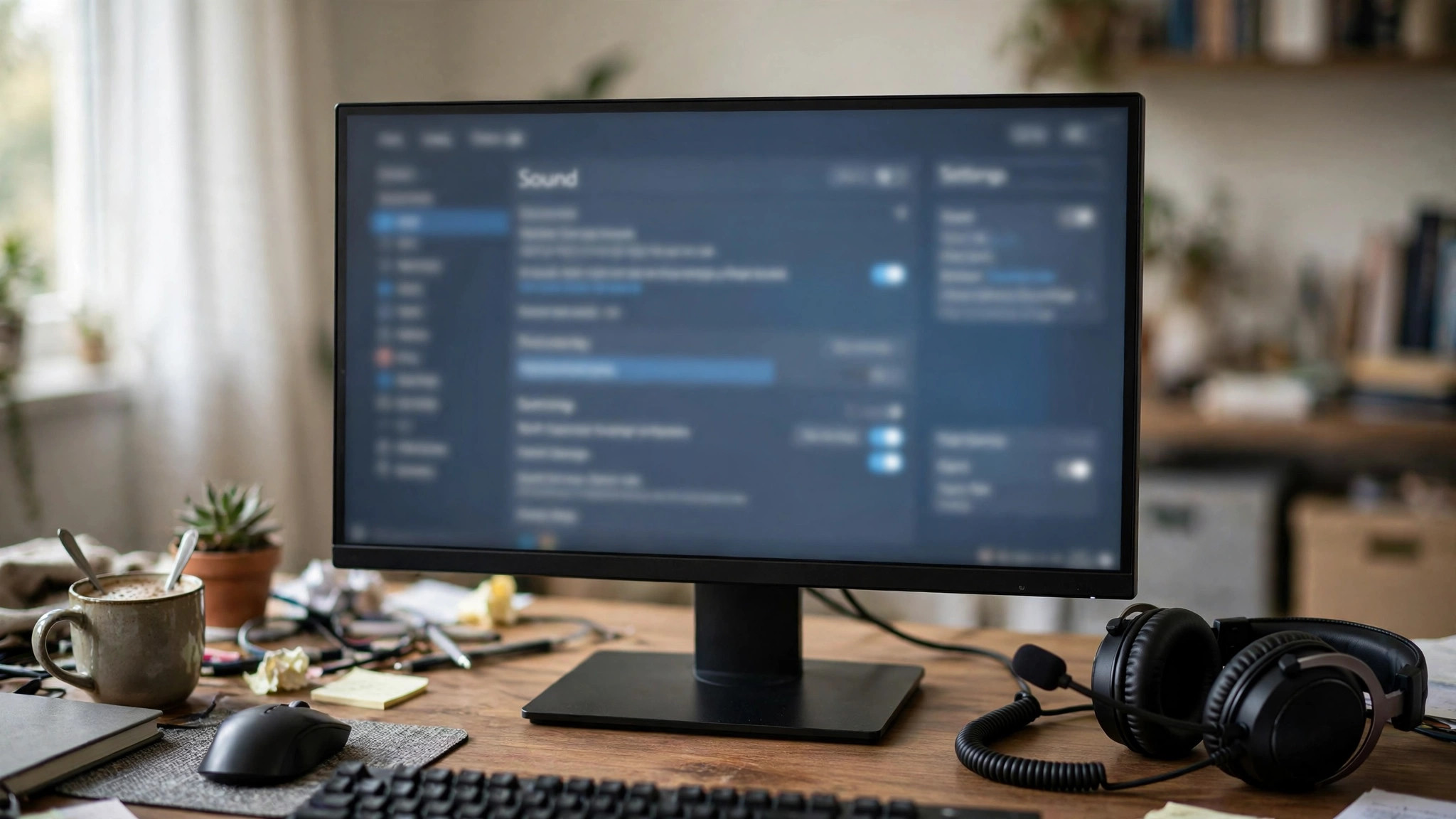
Windows often has several input devices: headset, webcam and laptop-array microphones. If the wrong one is selected, your voice goes to a device that is not near your mouth.
- Open Settings, then System, then Sound.
- Under Input, choose your headset or microphone from the device list — not the webcam, and not a monitor.
- Speak normally and watch the input volume bar. It should move clearly without hitting the top on every word.
- If the bar barely moves, raise the Input volume slider. If your voice is still far too quiet, the legacy boost setting may help: in the classic Sound control panel, under Recording, open your microphone's Properties, then the Levels tab, and raise Microphone Boost in small steps.
Keep volume in the middle range, not at maximum: 100 percent with boost amplifies background noise and breathing along with your voice.
Allow microphone access in Windows privacy settings
This commonly missed step produces the confusing symptom of a mic that works in some places and not others: a privacy switch can block apps entirely, even when the device works.
- Open Settings, then Privacy and security, then Microphone.
- Make sure Microphone access is on.
- Make sure Let apps access your microphone is on.
- Scroll through the app list and make sure the game, Steam, Discord or other app you use is allowed.
Some desktop apps do not appear individually in that list, because they are not installed from the Microsoft Store. For those, the main Microphone access switch matters — if it is off, they cannot hear anything. If you recently changed privacy settings, updated Windows or set up a new account, check this page first.
Check the app: Steam, Discord and in-game settings
Even with Windows set correctly, each app can pick its own input device, and that choice can be wrong. Check the app you are actually talking through.
Steam: open Steam Settings, then Voice. Set the recording device to your headset microphone, not Default, and use the built-in test to confirm your voice registers.
Discord: open User Settings, then Voice and Video. Set Input Device to your headset microphone and check the Input Volume slider. If you use push-to-talk, make sure the key is not already used by the game — a key that opens a game menu will never reach Discord reliably. If you use voice activity, check sensitivity is not set so high that normal speech falls below it.
In the game: open the game's audio or voice settings and check three things: voice chat is enabled, the input device is your headset microphone, not Default or a webcam, and the voice mode matches how you play — push-to-talk needs a free key, while open mic needs a threshold your normal voice clears. Also check voice chat volume is not at zero, which is easy to confuse with a dead microphone.
Hardware checks: mute switches, ports and cables
Hardware faults are less common than settings faults, but they are the easiest to rule out.
- Mute switches: check the headset itself, any inline remote on the cable, and any mute button in the headset's software. A physical mute is invisible to Windows, so the device looks healthy while sending silence.
- Ports: try a different USB port, or the rear audio jacks instead of the front panel.
- Another device: try a different headset or microphone, if you have one. If the replacement works, the original headset or cable is faulty; if nothing works, the fault is in the PC's settings or audio hardware.
- Bluetooth headsets: prefer a wired or dedicated USB wireless connection for gaming voice where possible. Bluetooth headsets often switch to a hands-free profile when the microphone is active, reducing quality.
If it works in one app but not another
Two Windows behaviours cause this pattern. The first is exclusive mode: an app can take exclusive control of the microphone, blocking other apps. In the classic Sound control panel, under Recording, your microphone's Properties, Advanced tab, try unchecking Allow applications to take exclusive control of this device.
The second is sample rate: in the same Advanced tab, the Default Format setting controls the sample rate the microphone reports, and a mismatch can leave it working in one app and silent in another. If you have changed it before, return it to a standard value such as 48000 Hz and test again.
Still not working? Drivers and a final test
If Windows cannot see the microphone at all, or no device works on that PC, check drivers — but only at this stage, not first. Open Device Manager, expand Audio inputs and outputs, and check your microphone is listed without a warning icon. Try updating its driver; if that changes nothing, uninstall the device, restart the PC, and let Windows reinstall it. Also check the headset manufacturer's software, which can mute a microphone independently of Windows.
Finally, run one clean test: confirm the correct input device is selected in Windows Sound settings and the bar moves when you speak, then test the same microphone in the app you actually use. If Windows hears you and the app does not, the fault is in that app. If neither hears you, the fault is the device, its cable or its port.
Most microphone problems in games are not broken headsets: they are a wrong device, a blocked permission, or a voice setting in one app.