You launch a game, the intro plays in silence, and you suspect the game. Nine times out of ten, though, the game is fine — Windows is simply sending its audio somewhere you are not listening. This guide works through every place audio can quietly go missing on a PC, in the order that actually finds the problem, from the quick checks to the deeper fixes.
First: the 30-second checks
- In-game volume sliders — open the game's audio settings and check the master, music, and effects sliders. Some games reset these after updates.
- System volume and mute — one accidental tap of the mute key silences everything. Check the speaker icon in the taskbar.
- The right playback device — this is the big one. Right-click the speaker icon, open Sound settings, and check the default output. Games almost always use the Windows default, and Windows has a habit of changing it when you plug in a monitor, a VR headset, or even a controller.
- Restart the game after switching devices — many games lock onto whatever audio device was active when they started. Quit fully and relaunch.
Make sure the game is going to the right device
Your PC likely has several audio outputs — motherboard jacks, HDMI audio through your monitor, USB headsets, Bluetooth devices. Windows picks a default, and games follow it.
- Open Settings > System > Sound and confirm your headphones or speakers are the default output device.
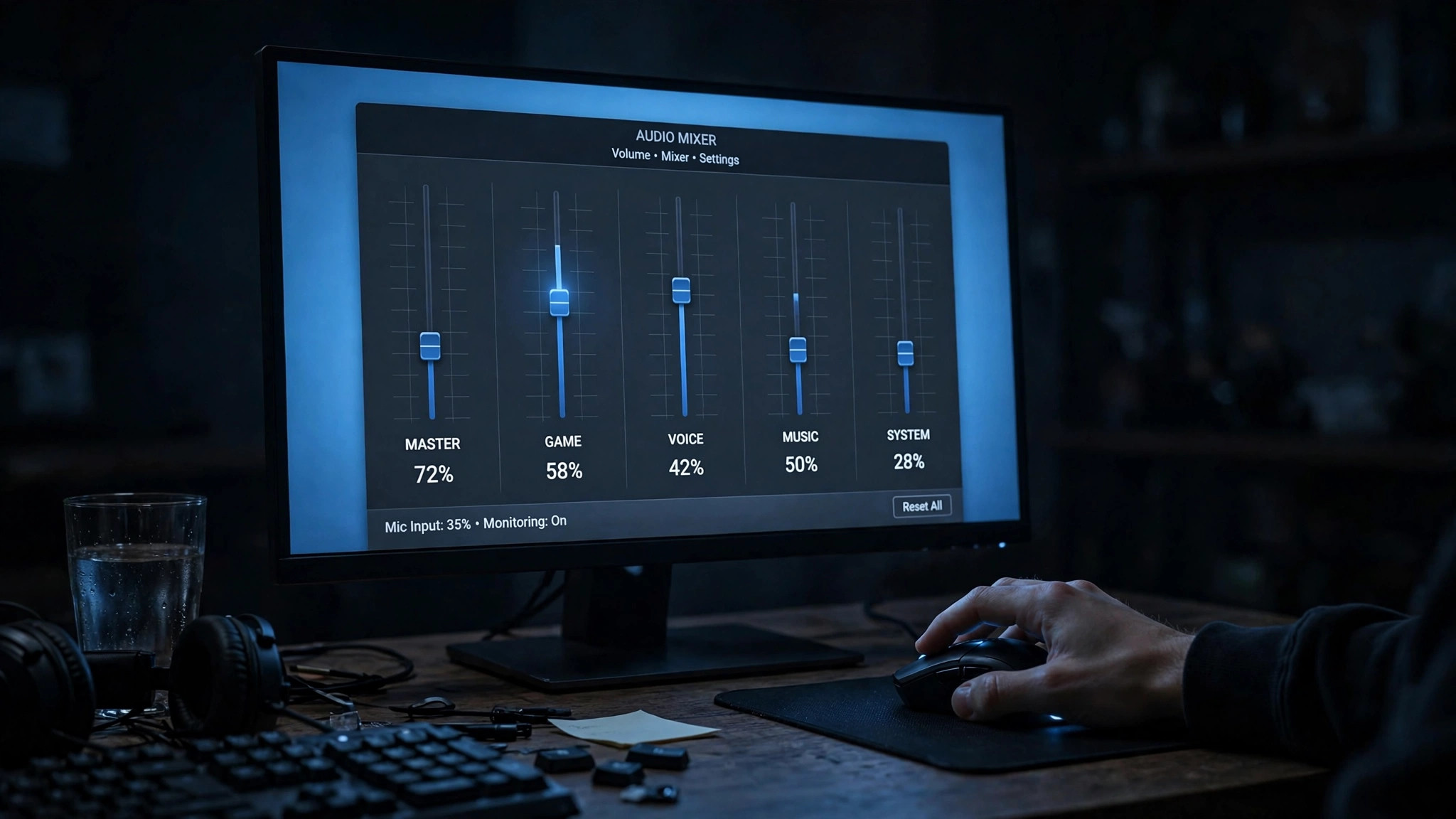
- Click Volume mixer (or App volume and device preferences on older Windows) and look for your game in the per-app list. Each app can be routed to a different device and have its own volume slider — it is entirely possible for your browser to play through your headset while your game is routed to your monitor's speakers. Set the game to the correct device and push its slider up.
- If you do not see the game listed, it has not produced audio since the mixer opened — alt-tab to the game, make some noise in it (a menu click counts), then check again.
- Disable outputs you never use. In Sound settings, open each unused device's properties and choose Don't allow (or disable it in the classic Sound control panel). Fewer devices means Windows cannot silently switch to one you never listen to.
Fix sample-rate and exclusive-mode conflicts
Audio is produced at a sample rate — usually 44,100 Hz or 48,000 Hz. When Windows, the driver, and the game disagree about the rate, the result can be anything from crackling to total silence. This is a classic cause of "no sound in this one game" problems.
- Right-click the speaker icon, choose Sound settings, then open your output device's properties and look for the format setting (sometimes under Advanced or Additional device properties). Try switching between
24 bit, 44100 Hzand24 bit, 48000 Hz, then restart the game and test. - On the same page, look for Exclusive mode. When enabled, an app can take exclusive control of the audio device. This can cut latency, but it also lets one program block everything else — and some games fail silently when exclusive mode is denied to them. Try it both on and off.
- Turn off audio enhancements. Disable any enhancement options (loudness equalization, virtualization, vendor effects) on the device properties page. These are a frequent source of silence and distortion.
The HDMI and USB traps
A few hardware scenarios cause "no sound" so often they deserve their own section:
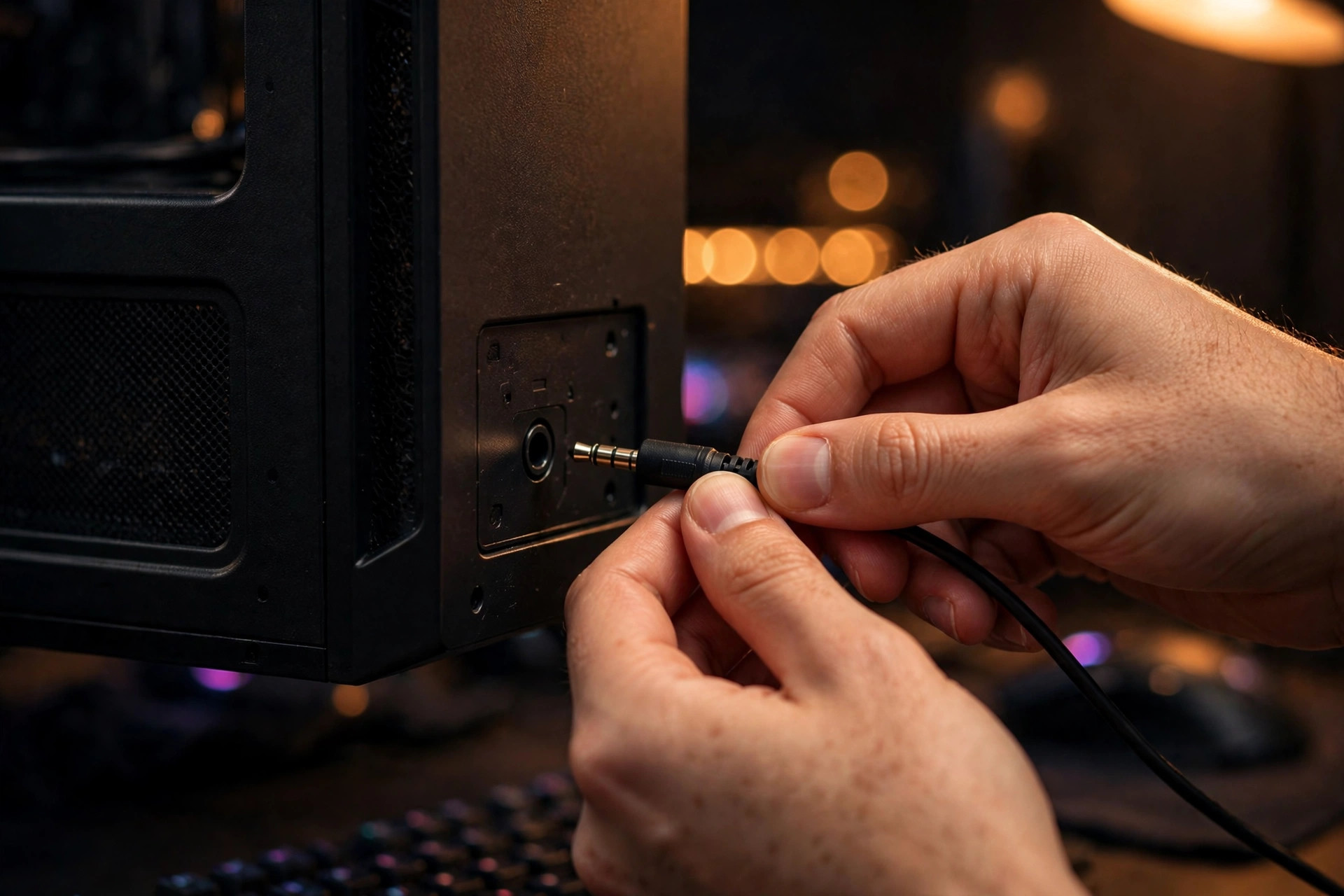
- Unwired front-panel jacks — if your case's front-panel audio connector was never wired to the motherboard (common on budget builds), that jack is dead. Use the rear jacks.
- Monitor speakers as the default device — Windows may route game audio to your monitor's speakers after a driver update or cable swap. You will hear nothing unless the monitor's own volume is up.
- VR headsets and controllers — connecting a VR headset or some controllers registers new audio devices, and Windows loves to promote the newest one to default. After a VR session, check your default device.
- Bluetooth profile switching — Bluetooth headsets with both "headset" (voice) and "headphones" (stereo) profiles can switch profiles when a game opens the microphone, muting game sound. Disable the headset profile or use a wired connection.
- Spatial sound conflicts — Windows Sonic, Dolby Atmos for Headphones, and similar spatial options can conflict with a game's own surround processing. Set spatial sound to Off in the device properties and test.
Fix the drivers, not just the settings
If every setting is correct and there is still no sound, the audio driver itself is suspect:
- Open Device Manager, expand Sound, video and game controllers, right-click your audio device, and choose Uninstall device — then restart. Windows reinstalls a fresh copy of the driver on boot. This clears corrupted driver states that survive ordinary updates.
- If you use HDMI or DisplayPort audio, the sound driver comes from your GPU driver package, not your motherboard. Update your GPU drivers from the manufacturer's site rather than Windows Update.
- For motherboard audio, get the driver from your motherboard manufacturer's support page. The generic Windows driver works for basic playback but can miss bug fixes the vendor driver includes.
When it is the game itself
Some games have audio quirks no Windows setting will fix:
- In-game output device selector — a few games let you pick the audio device in their own settings. Set it explicitly instead of leaving it on the system default.
- Verify the game files — corrupted or missing audio assets can mute a game. On Steam, right-click the game, choose Properties > Installed Files > Verify integrity of game files. Other launchers have an equivalent repair option.
- Overlay and capture software — Discord's overlay, streaming tools, and voice apps can grab exclusive audio control. If sound dies when you open a particular app alongside the game, that app is the prime suspect. And if your game audio is also missing from recordings, make sure your capture software monitors the same device the game uses — our guide to recording gameplay on PC without losing FPS covers audio setup in detail.
Quick-reference: symptom to fix
| Symptom | Most likely cause | Fix to try |
|---|---|---|
| No sound in one game, everything else is fine | Per-app routing or in-game setting | Volume mixer per-app device; in-game sliders and output selector; restart the game |
| No sound after plugging in headphones or a VR headset | Windows changed the default device | Re-set the default output; disable unused devices |
| Crackling or silence after a driver or Windows update | Driver or sample-rate mismatch | Reinstall the audio driver; try 44100 Hz vs 48000 Hz; disable enhancements |
| Sound works in menus, silent in gameplay | Spatial sound or exclusive-mode conflict | Turn spatial sound off; toggle exclusive mode; disable enhancements |
| No sound from the monitor's speakers | Audio routed to a device with no working output | Check the monitor's own volume; set the real speakers as default |
| Sound drops when voice chat activates | Bluetooth profile switching | Disable the Bluetooth headset (voice) profile or go wired |
Work through these in order and you will find the break in the chain: audio is being sent to the wrong device, blocked by a setting, or mangled by a driver. Fix that one link, and the game gets its voice back.