Nothing kills gaming performance quite like heat. When your graphics card gets too hot, it protects itself by slowing down — a process called thermal throttling — and your frame rate drops, the game stutters, and the fans spin up to a roar. The good news is that overheating is almost always fixable, and most of the fixes cost nothing. Work through this guide in order, from the quick checks to the deeper fixes.
First: find out if your GPU is actually overheating
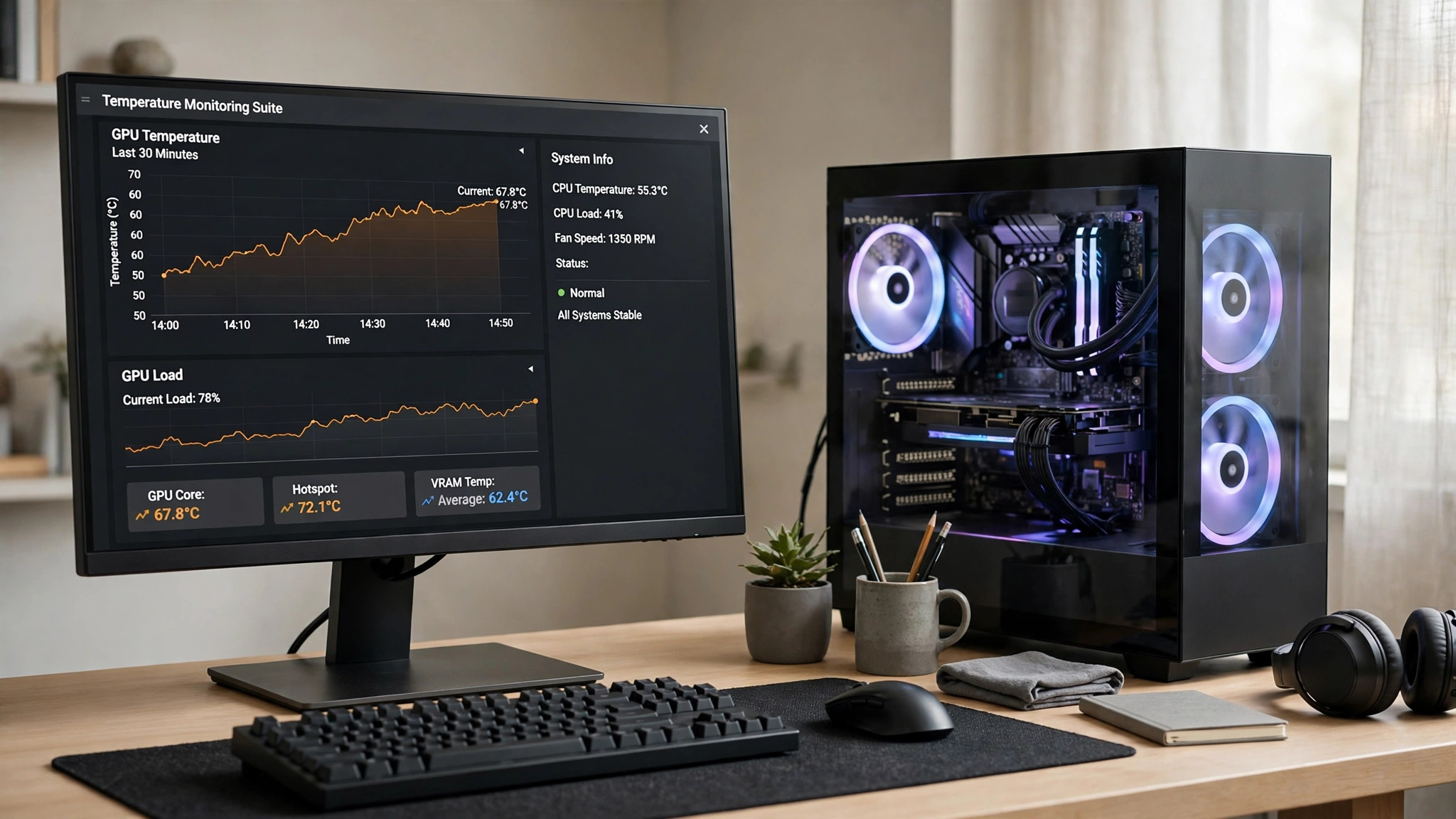
Do not guess. A loud fan or a warm case does not necessarily mean a problem — modern graphics cards are designed to run hot, and many are built to sit at 75–80°C under full load without any trouble. As a rough guide, most NVIDIA cards begin throttling around 83°C, while AMD cards typically throttle at higher temperatures, with hotspot readings up to around 110°C considered within specification. What matters is not a single number, but whether the card is throttling: if your temperatures climb into the mid-80s and your frame rate drops at the same time, you have a real problem.
To check, install a free monitoring tool such as MSI Afterburner with its RivaTuner overlay, or HWiNFO. Turn on the on-screen display for GPU temperature and clock speed, then play a demanding game for ten minutes. Watch what happens: if the clock speed falls well below the card's normal boost speed while the temperature sits at its limit, the card is throttling. If the temperature stays under 80°C and the clock speed holds steady, your problem lies elsewhere — high CPU load, for example, which our guide on fixing high CPU usage in PC games can help you diagnose.
Step 1: clean the dust out
Dust is the most common cause of a GPU that used to run cool and slowly got hotter. A thin layer of dust on the heatsink acts like a blanket, and a clogged fan cannot move air at all. This one fix solves the problem for a surprising number of people.
- Shut the PC down, switch it off at the wall, and open the side panel.
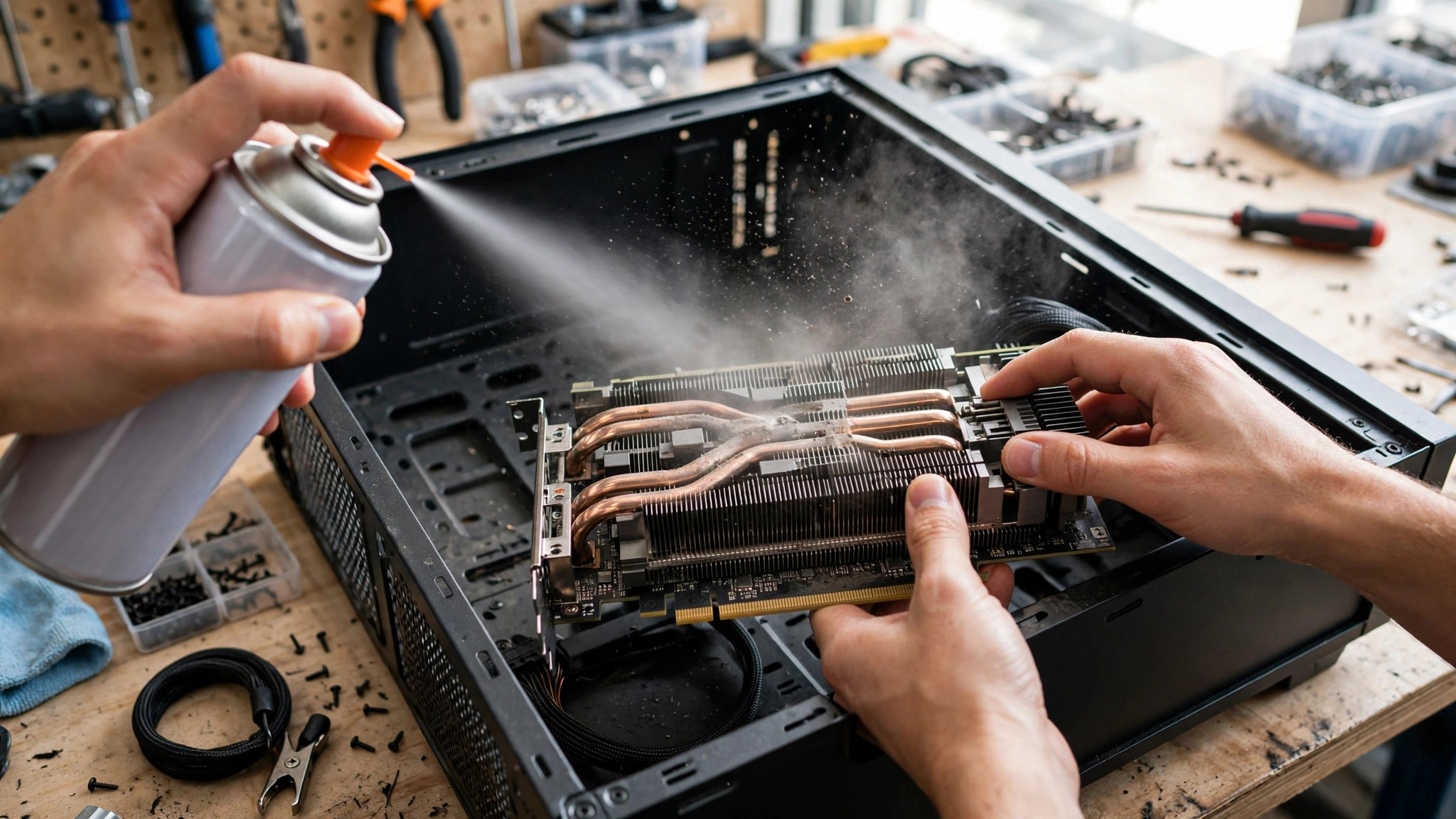
- Hold the graphics card fans still with a finger — letting them spin freely while you blow air through them can damage the bearings.
- Use short bursts of compressed air to blow dust out of the heatsink fins and fans, working from the inside out. Do this outside or near an open window if you can.
- Clean the dust filters on the front and bottom of the case too, and check the other case fans.
- Close up, boot, and test again. If temperatures dropped by 5–10°C, dust was your problem.
Do not use a vacuum cleaner inside the case: it generates static and can damage components. Do not use a damp cloth on the card itself. If you have pets, or the PC sits on carpet, expect to repeat this every three to six months.
Step 2: fix your case airflow
A clean GPU in a case with no airflow will still overheat, because the hot air has nowhere to go. Good airflow follows a simple rule: cool air in at the front and bottom, hot air out at the back and top.
- Make sure you have at least two intake fans at the front and one exhaust fan at the back. A case with only one fan is starved of air.
- Check the fans are pointing the right way. Most fans have a small arrow on the frame showing airflow direction; intake fans should pull air in, exhaust fans push it out. It is easy to install one backwards.
- Clear the space in front of the intake fans. A solid front panel, a stack of boxes against the case, or a PC shoved into a closed desk cupboard all choke the airflow.
- Tidy the cables. Thick bundles of cables hanging in front of the graphics card block the air path — route them behind the motherboard tray where possible.
- Move the PC off carpet and away from radiators. A PC on the floor sucks in carpet dust and warm air from the ground.
As a quick test, remove the side panel and play for ten minutes. If temperatures fall sharply with the panel off, airflow is your problem — the card is fine, but the case is suffocating it. Do not leave the panel off permanently, though: it disrupts the designed airflow path and lets dust in faster.
Step 3: set a proper fan curve
Many graphics cards ship with a quiet fan curve that prioritises silence over cooling, and some do not spin their fans at all below 50–60°C. That is fine for light use, but in a long gaming session it lets heat build up until the card has to throttle. A custom fan curve fixes this.
In MSI Afterburner, open the fan settings and enable user-defined fan control. A sensible curve is: 30% fan speed at 40°C, 50% at 60°C, 70% at 75°C, and 90–100% at 85°C. The fans will be louder than stock, but the card will hold its boost clock instead of throttling — and a steady fan is usually less annoying than a card that constantly speeds up and slows down. If the noise bothers you, good headphones are cheaper than a new graphics card.
While you are in Afterburner, check that no other software is fighting it. Having two fan-control tools running at once — for example, your graphics driver software and Afterburner — can cause the fans to behave erratically. Pick one tool and disable fan control in the other.
Step 4: lower the load on the card
If the card still runs hot after cleaning and airflow fixes, reduce the work it has to do. This is not giving up — it is trading a small visual loss for a large temperature drop.
- Cap your frame rate to your monitor's refresh rate. An uncapped card rendering 200 FPS in a menu is working far harder than it needs to, and generating heat for frames you never see.
- Turn down the most demanding settings first: shadows, ray tracing, and anti-aliasing. Ray tracing in particular adds a large amount of heat for its visual benefit.
- Try your upscaling option — DLSS, FSR or XeSS on Quality mode — which renders at a lower internal resolution and can drop temperatures by several degrees.
- Undervolting is the advanced version of this: in MSI Afterburner, you lower the voltage the card uses at a given clock speed. A good undervolt keeps the same performance while cutting power use — and therefore heat — by 10–15%. It takes an hour of careful testing with small steps, and you should stress-test after each change, but it is one of the most effective fixes there is. If the card crashes, raise the voltage slightly and test again.
Step 5: check the thermal paste and pads (advanced)
If your card is more than four or five years old, or a second-hand card that was used heavily, the thermal paste between the graphics chip and the heatsink may have dried out. Replacing it can drop temperatures by 10°C or more — but it involves removing the cooler, which voids the warranty on some cards and risks damaging the card if done wrong.
Only attempt this if you are comfortable taking hardware apart, and only after the earlier steps have failed. Watch a teardown video for your exact card model first, because screw layouts and cable connectors vary. Use a quality non-conductive thermal paste, apply a pea-sized amount, and reassemble carefully. If the card is still under warranty, check with the manufacturer first — an overheating card under warranty may be a fault they should fix, not you.
Also check the simple physical things: is the card seated fully in its slot? Is the power cable plugged in properly? A card running on a loose power connection can behave strangely, and a sagging heavy card can lose contact with the slot over time — a cheap support bracket or even a carefully placed stand can fix a sag.
When it is not the GPU at all
Sometimes the graphics card is the victim, not the cause. A CPU running at 100% can heat the whole case, and a failing power supply can make the card behave erratically. If temperatures look normal but the game still stutters, check your CPU temperatures and usage too. And if the card overheats within seconds of launching any game, or shows graphical glitches and crashes even at low temperatures, the card itself may be failing — back up your data, and test the card in another PC if you can before replacing it.
Quick checklist
| Symptom | Likely cause | Fix to try first |
|---|---|---|
| Temps climbed slowly over months | Dust build-up | Clean heatsink, fans and filters |
| Temps drop sharply with side panel off | Bad case airflow | Add intake/exhaust fans, clear obstructions |
| Fan stays quiet, then card throttles | Conservative fan curve | Custom fan curve in Afterburner |
| Hot only in demanding games | Excess load | Cap frame rate, lower shadows and ray tracing |
| Old card, paste dried out | Aged thermal paste | Repaste (advanced, warranty check first) |
Overheating feels alarming, but it is one of the most solvable problems in PC gaming. Start with dust and airflow — the two free fixes that solve most cases — and only move to fan curves, undervolting and repasting if the simple steps do not work. Your graphics card will thank you with quieter fans and the frame rate you actually paid for.