When your CPU runs at 90–100% while you play, there is no headroom left for the game: frames stutter, audio crackles, and inputs feel delayed, even though your graphics card is barely working. High CPU usage rarely means your processor is too weak — usually something else is stealing its time: a background app, a bad setting, a driver problem, or heat. Work through the steps below and you will usually find the cause within half an hour.

What high CPU usage looks like in games
The classic sign is stuttering: the game runs well, then freezes for a fraction of a second, over and over. You may also see slow menus, popping audio, or a CPU pinned near 100% in Task Manager while the GPU sits at 50–60% — the graphics card is waiting on the processor. Confirm it first: press Ctrl + Shift + Esc, open the Performance tab, and watch the CPU graph while playing. If usage regularly hits 95–100%, you have a CPU bottleneck. If it hovers around 60–70%, your stutter likely has a different cause — see our guide to fixing lag and stutter in PC games.
Step 1: Check what's actually using your CPU
In Task Manager, go to the Processes tab and click the CPU column header to sort by usage. With your game running, look at everything above it: a browser with dozens of tabs, Discord, a cloud-sync client, an antivirus scan, Windows Update downloading, or a launcher updating another game. Close anything you do not need and watch the CPU graph drop. Search any unfamiliar process name online before ending it — some system processes are supposed to run. If a process keeps coming back, it probably launches at startup: see the next step.
Step 2: Trim background apps and startup programs
Most high-CPU problems are really background-app problems. In Task Manager, open the Startup apps tab and disable anything with a high impact that you do not need the moment Windows starts — chat clients, game launchers, cloud storage, RGB software, and updaters are the classic offenders. You can still open them manually later. While gaming, close your browser tabs, pause cloud syncing, and quit other launchers. If you record gameplay, use your graphics card's hardware encoder (NVENC on NVIDIA, AMF on AMD) instead of software encoding.
Step 3: Switch to the High performance power plan
Windows power plans control how aggressively your CPU boosts, and the default Balanced plan can be too conservative for gaming. Go to Settings > System > Power > Power mode and set it to Best performance. On a desktop you can also pick the High performance plan under Control Panel > Hardware and Sound > Power Options. This does not add processing power, but it stops Windows from parking cores and dropping clock speeds at the wrong moment. On a laptop, use it only while plugged in.
Step 4: Lower the in-game settings that load the CPU
Not all graphics settings hit the GPU — several load the CPU hard. Turn these down first:
- Draw distance — more visible world means more objects for the CPU to track.
- Shadow quality — shadows are often calculated on the CPU, especially in older engines.
- Physics and particles — debris, cloth, and destruction simulations run on the CPU.
- Crowd and NPC density — every extra character needs AI and pathfinding.
- Anti-aliasing — methods such as MSAA add CPU work as well as GPU work.
Lower shadows, draw distance, and crowd density first — the biggest CPU saving for the smallest visual loss. Texture quality mostly affects VRAM and the GPU, so leave it high. If the game offers an FPS cap, cap the frame rate slightly below your monitor's refresh rate: an uncapped frame rate makes the CPU work flat out preparing frames the display never shows.
Step 5: Update drivers, Windows, and your BIOS
Outdated software is a quiet cause of high CPU usage. Download the latest graphics driver from NVIDIA or AMD directly; if you suspect a corrupt install, clean-install it with Display Driver Uninstaller first — see our guide to clean-installing NVIDIA and AMD drivers with DDU. Chipset drivers from your motherboard or laptop maker's site matter too. Then run Windows Update and install everything pending. Developers also patch CPU-heavy bugs, so check for game updates and known issues in the patch notes. A BIOS update is the last software step, only when the manufacturer lists a fix matching your problem — and never interrupt one.
Step 6: Rule out heat, dust, and thermal throttling
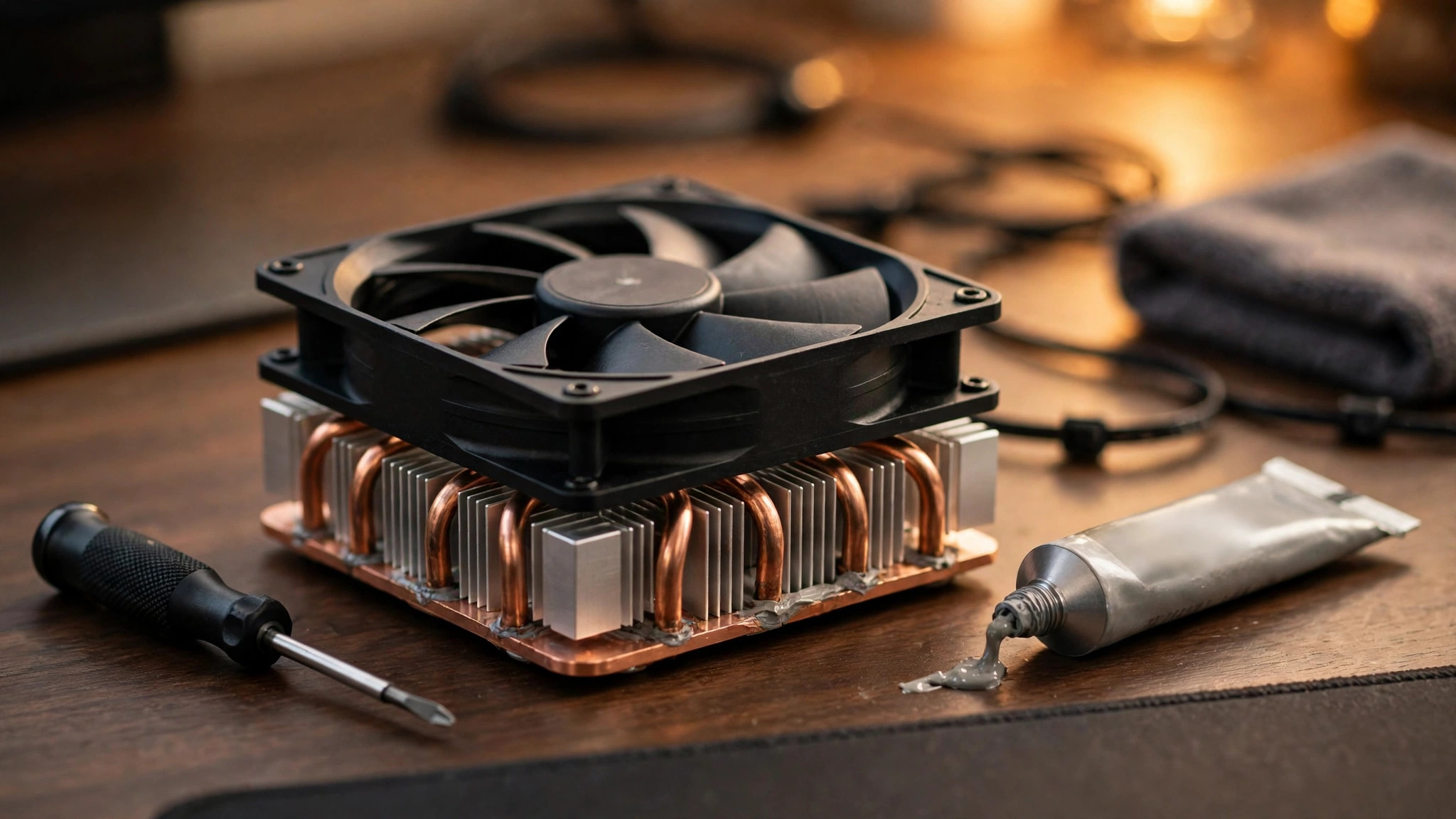
A hot CPU slows itself down to avoid damage, and a throttled CPU has to work at 100% just to keep up — which is why dust and heat so often masquerade as a CPU usage problem. Check your temperatures with our guide to checking CPU and GPU temperature while gaming: a desktop CPU should stay under roughly 85°C during long sessions. Power the PC off and clean the dust filters, fans, and heatsink fins with compressed air, with intake at the front and bottom and exhaust at the rear and top. On a laptop, elevate the rear for airflow and clean the vents.
Step 7: Scan for malware
Malware, especially crypto miners, is designed to hide while eating your CPU. If usage is high even when no game is running, run a full scan with Windows Security (Settings > Privacy & security > Windows Security > Virus & threat protection > Scan options > Full scan), and for a second opinion use the free version of Malwarebytes. A clean result rules out the worst explanation; a detection explains everything.
Is it the game or your PC?
Does this happen in every game, or just one? If it is one game, the problem is usually the game itself — a poorly optimised title, a known bug, or settings too demanding for your hardware. Check the forums and patch notes, lower the CPU-heavy settings from Step 4, and cap your frame rate. If it happens in every game, the cause is systemic — re-check Steps 1, 5, and 6. Also check memory: a PC short on RAM forces Windows to swap to disk constantly, which shows up as extra CPU work — see our guide to fixing high RAM usage in PC games.
Quick checklist
| Check | What to look for | Fix |
|---|---|---|
| Task Manager | Background apps near 100% total | Close the biggest users |
| Startup apps | High-impact apps at boot | Disable non-essential ones |
| Power plan | Balanced mode limiting clocks | Best performance |
| In-game settings | Shadows, draw distance on Ultra | Lower CPU-heavy settings |
| Drivers | Old GPU or chipset drivers | Update GPU, chipset, Windows |
| Temperature | CPU above 85°C sustained | Clean dust, improve airflow |
| Malware | High usage, no game running | Full Windows Security scan |
High CPU usage is almost always fixable without spending money. Start with Task Manager, clear out the background apps stealing your processor's time, lower the settings that load the CPU, and make sure heat is not slowing your chip down. If the problem survives all of that in one game only, it is the game — patch it, cap the frame rate, and play on.