Not all "lag" is the same thing. A low frame rate means your PC cannot draw frames fast enough. Stuttering means frames arrive unevenly — the counter says 120 FPS but the game hitches every few seconds. Network lag is a third thing entirely and none of the settings below fix that. This guide is about the first two: low FPS and stutter. Work through the fixes in order, because the early ones solve most cases.
One tip before you start: back up your game saves before changing anything major. Our save backup guide shows the quick way.
1. Update your GPU drivers — properly
Outdated or half-broken GPU drivers are the single most common cause of sudden performance drops, especially right after a big game update. Download the latest driver from NVIDIA, AMD or Intel, choose the clean install option during setup, and restart. On laptops, get the driver from the GPU maker's site rather than Windows Update — the Windows version is often months old.
2. Find out what is actually slow
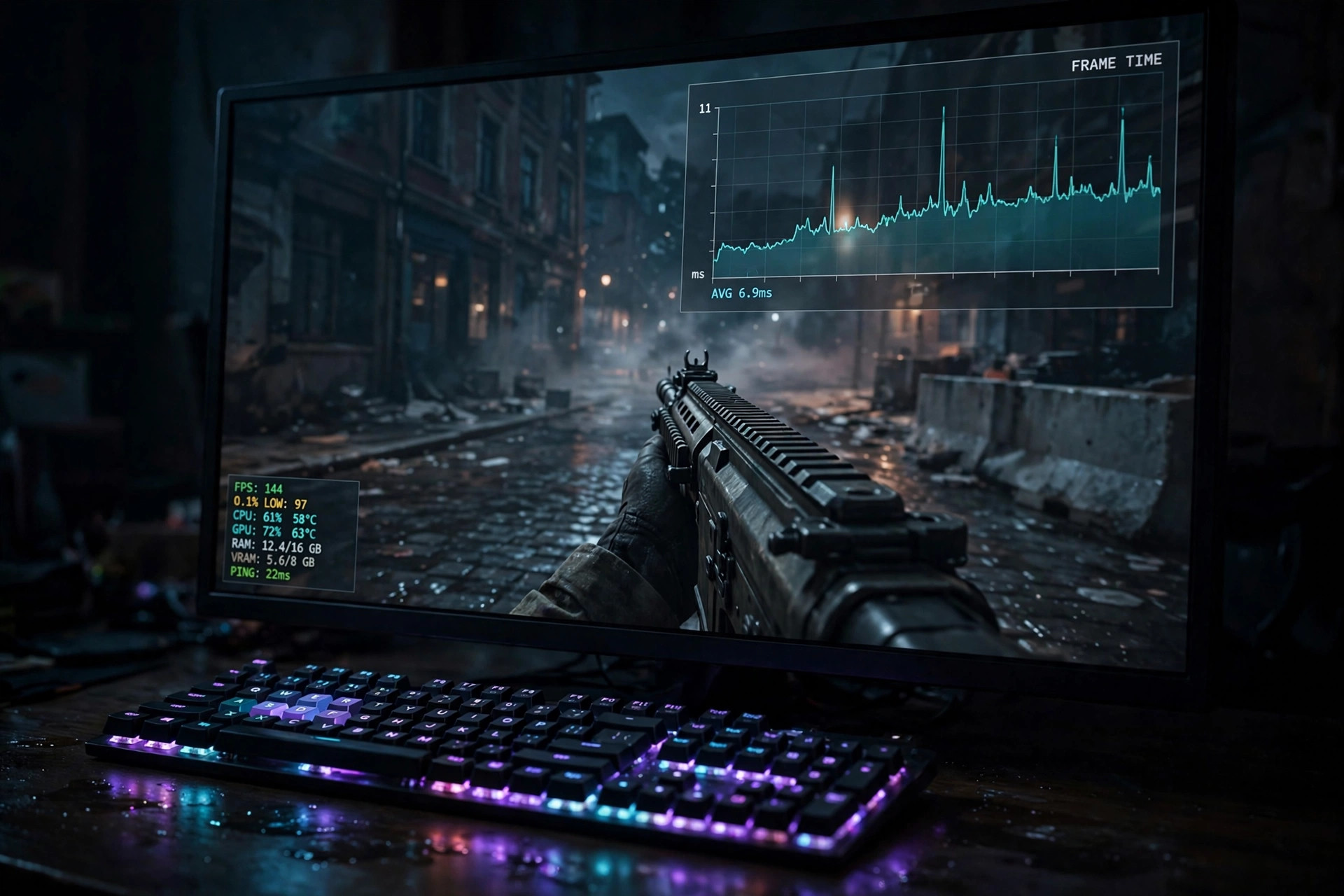
Guessing wastes time. Turn on an overlay that shows frame rate and frame time: NVIDIA's GeForce overlay (Alt+R), AMD's overlay (Alt+R), or the free RTSS. A flat frame-time graph with low FPS means your GPU is the limit. A spiky graph at high FPS means stutter — skip ahead to fixes 7 and 8, because lowering settings will not help much.
3. Lower shadows and volumetrics first
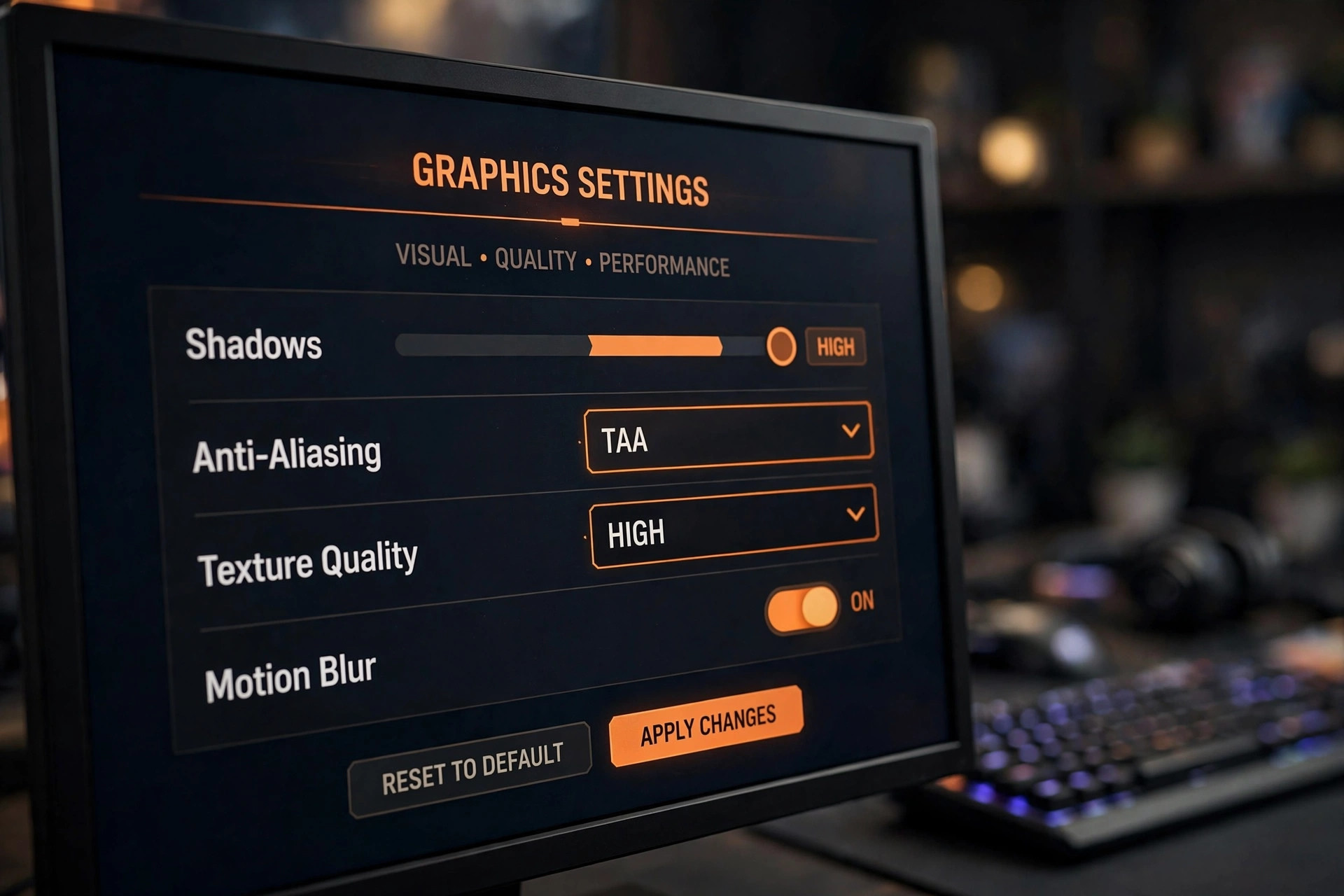
Not all settings cost the same. Shadows, volumetric lighting/fog, and screen-space reflections are usually the most expensive effects in a scene. Dropping shadows from Ultra to High or Medium often gains 15–30% FPS with barely visible difference during gameplay. Textures, on the other hand, cost video memory rather than speed — lowering them rarely helps FPS unless you are running out of VRAM.
4. Turn on DLSS, FSR or XeSS
Upscaling renders the game at a lower internal resolution and reconstructs a sharp image. On NVIDIA RTX cards use DLSS, on AMD or older cards use FSR, on Intel Arc use XeSS. The Quality preset is the sweet spot: it looks nearly identical to native resolution and typically adds 30–60% FPS. This one toggle can matter more than every other setting combined.
5. Cap your frame rate
An uncapped frame rate makes your GPU run at 100% all the time, which causes heat, noise and more stutter when a heavy scene hits. Cap FPS slightly below your monitor's refresh rate — 138 FPS on a 144 Hz monitor, 58 on a 60 Hz one — using the in-game limiter first (it has the lowest input lag), or the GPU control panel if the game has none. Your game will feel smoother, not slower.
6. Set VSync correctly
Screen tearing (a horizontal split in the image) means your GPU and monitor are out of sync. If your monitor supports G-Sync or FreeSync, enable it in the GPU control panel and turn VSync off in-game — that combination gives tear-free frames with minimal lag. Without adaptive sync, use in-game VSync if tearing bothers you, but know it adds input delay; fast-paced shooters usually feel better with VSync off and a frame cap instead.
7. Fix shader compilation stutter
Many modern games hitch the first time they see a new effect — that is the game compiling shaders on the fly. Signs: stutters in the first 10–20 minutes that fade away. Fixes: look for a "pre-compile shaders" option on first launch and let it finish, keep the game on an SSD, and avoid alt-tabbing during the first minutes. If a game stutters forever in the same spots, that is usually the game's problem, and a patch or the PC gaming community's launch-option tweaks are the real fix — our console and launch-options guide shows where those go.
8. Kill background apps and overlays
Discord overlay, browser tabs with video, RGB control software and game launchers all steal CPU time and cause exactly the random hitches people blame on the game. Close your browser while playing, disable the Discord and Steam overlays for the game you are testing (you can re-enable them later), and check Task Manager for anything using more than a few percent CPU in the background.
9. Check power settings (laptops especially)
A gaming laptop on battery power silently clocks everything down. Plug it in, set Windows to Best performance power mode, and in the GPU control panel set the preferred graphics processor to the dedicated NVIDIA/AMD GPU rather than integrated graphics. On desktops, the "High performance" power plan avoids the CPU parking cores mid-game.
10. Move the game to an SSD
An SSD will not raise your FPS much, but it kills loading stutter and texture pop-in, especially in open-world games that stream data as you move. If you only have one small SSD, put your current game and its shader cache on it — the shader cache location can be moved in the GPU control panel. HDDs are fine for storing games you are not playing.
11. Check temperatures
Hot components slow themselves down to survive. If FPS starts fine and sinks after 20 minutes, that is thermal throttling. Check temperatures with HWMonitor: sustained CPU/GPU temps above 85–90°C under load are a problem. The fixes are unglamorous — clean dust filters, make sure fans actually spin, give the case airflow — but they work. Repasting or undervolting helps old hardware; try cleaning first.
12. Verify the game files
Corrupted or half-updated files cause crashes and weird hitches that look like performance problems. In Steam: right-click the game → Properties → Installed Files → "Verify integrity of game files". Epic and GOG Galaxy have the same option. It takes a few minutes and fixes a surprising number of "my game runs badly after the patch" cases.
Quick checklist
- Clean-install the latest GPU driver
- Turn on DLSS/FSR/XeSS (Quality preset)
- Drop shadows and volumetrics one notch
- Cap FPS just under your refresh rate
- Close browsers and overlays while testing
- Game on SSD, laptop plugged in, power plan on Best performance
FAQ
Why does my game stutter even at high FPS?
Because FPS is an average. If most frames render in 8 ms but some take 50 ms, the average still looks like 120 FPS while the game visibly hitches. Watch the frame-time graph, not just the FPS number — fixes 7 and 8 target exactly this.
Will more RAM fix lag?
Only if you are running out. With 16 GB and nothing heavy in the background, RAM is rarely the bottleneck. Check Task Manager while playing: if memory sits above 90%, an upgrade helps; otherwise spend the effort on the settings above.
Does Game Mode in Windows help?
Sometimes, slightly. It stops Windows Update from interrupting you and prioritizes the game process. Leave it on — it costs nothing — but do not expect miracles.