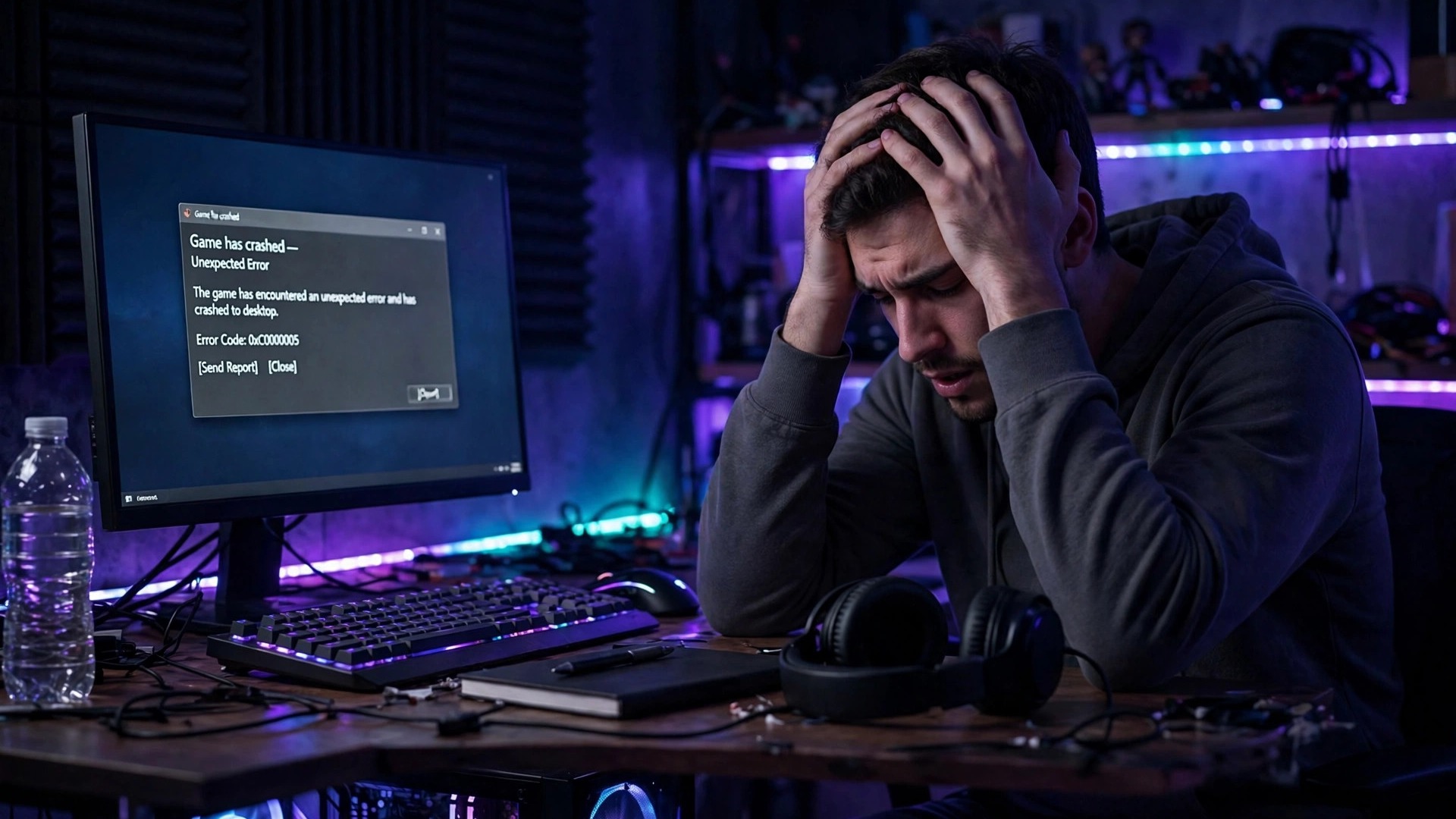
Nothing is more frustrating than clicking Play and watching a game close before it reaches the main menu. Sometimes you get an error message, sometimes a black screen, and sometimes the game simply vanishes with no explanation. The good news is that most launch crashes have a small number of causes, and they are usually fixable without reinstalling Windows or buying new hardware.
Work through these fixes in order, testing the game after each step so you know exactly which one worked. If your game runs fine but stutters once you are in-game, see our guide on how to fix lag and stutter in PC games instead.
1. Read the error, or find the crash log
Before changing anything, look for clues. An error mentioning a .dll file, DirectX, or a graphics driver points straight at the cause. If there is no error, check Windows Event Viewer: press Win + X, choose Event Viewer, then Windows Logs, then Application, and look for Error entries timestamped to the crash.
2. Verify the integrity of the game files
Corrupt or missing files are the most common cause of launch crashes, especially after an interrupted download or failed update. On Steam, right-click the game, choose Properties, then Installed Files, then "Verify integrity of game files". On Epic Games, click the three dots next to the game and choose Manage, then Verify. On GOG Galaxy, use Manage Installation, then Verify / Repair. Verification compares your files against the server copies and re-downloads anything damaged.
3. Update your graphics drivers with a clean install
Outdated or half-updated graphics drivers are the second most common cause. Download the latest driver directly from NVIDIA, AMD, or Intel. During installation, choose the "Clean Install" option (NVIDIA) or "Factory Reset" option (AMD) so old driver remnants are removed. If the crash started right after a driver update, the new driver itself may be at fault: open Device Manager, expand Display adapters, right-click your graphics card, choose Properties, then the Driver tab, then Roll Back Driver.
4. Run the game as administrator
Some games fail at launch because they cannot write to their own save or config folder. Right-click the game's executable or launcher shortcut and choose "Run as administrator". If that fixes it, make it permanent: right-click the executable, choose Properties, then the Compatibility tab, and tick "Run this program as an administrator".
5. Install or repair DirectX and Visual C++ runtimes
Many games need Microsoft's DirectX runtime and Visual C++ Redistributable packages, and a missing or damaged one produces a crash with a .dll error such as MSVCP140.dll or VCRUNTIME140.dll. Most games install these automatically, but that step can silently fail. Download the latest Visual C++ Redistributables (both x86 and x64) from Microsoft's official site, install them, then run the DirectX End-User Runtime installer.
6. Disable overlays and background apps
Overlays inject themselves into the game as it starts, and a clash here can kill the game before the menu appears. Temporarily disable the Steam overlay (Steam, Settings, In Game, uncheck "Enable the Steam Overlay while in-game"), the Discord overlay, the NVIDIA overlay, and any FPS counter or screen-recording tool. If the game now launches, re-enable them one at a time to find the culprit.
7. Check your antivirus and firewall
Antivirus software sometimes quarantines a game file or blocks the executable outright, especially right after an update changes those files. Open your antivirus quarantine and check whether anything from the game's folder was flagged. If it was, restore it and add the game's install folder to your antivirus exclusions. Also check Protection history in Windows Security for blocked actions around the time of the crash.
8. Free up disk space and check the install drive
A game needs free space for itself plus temporary files, shader caches, and save data. If your drive has less than 10 percent free, or under about 20 GB on a game drive, free some room and try again. If the game is on an external drive, try moving it to an internal drive for one test: a slow, sleeping, or disconnecting external drive can make a game crash during its initial loading phase in ways that look like a software bug.
9. Delete the shader cache and config files
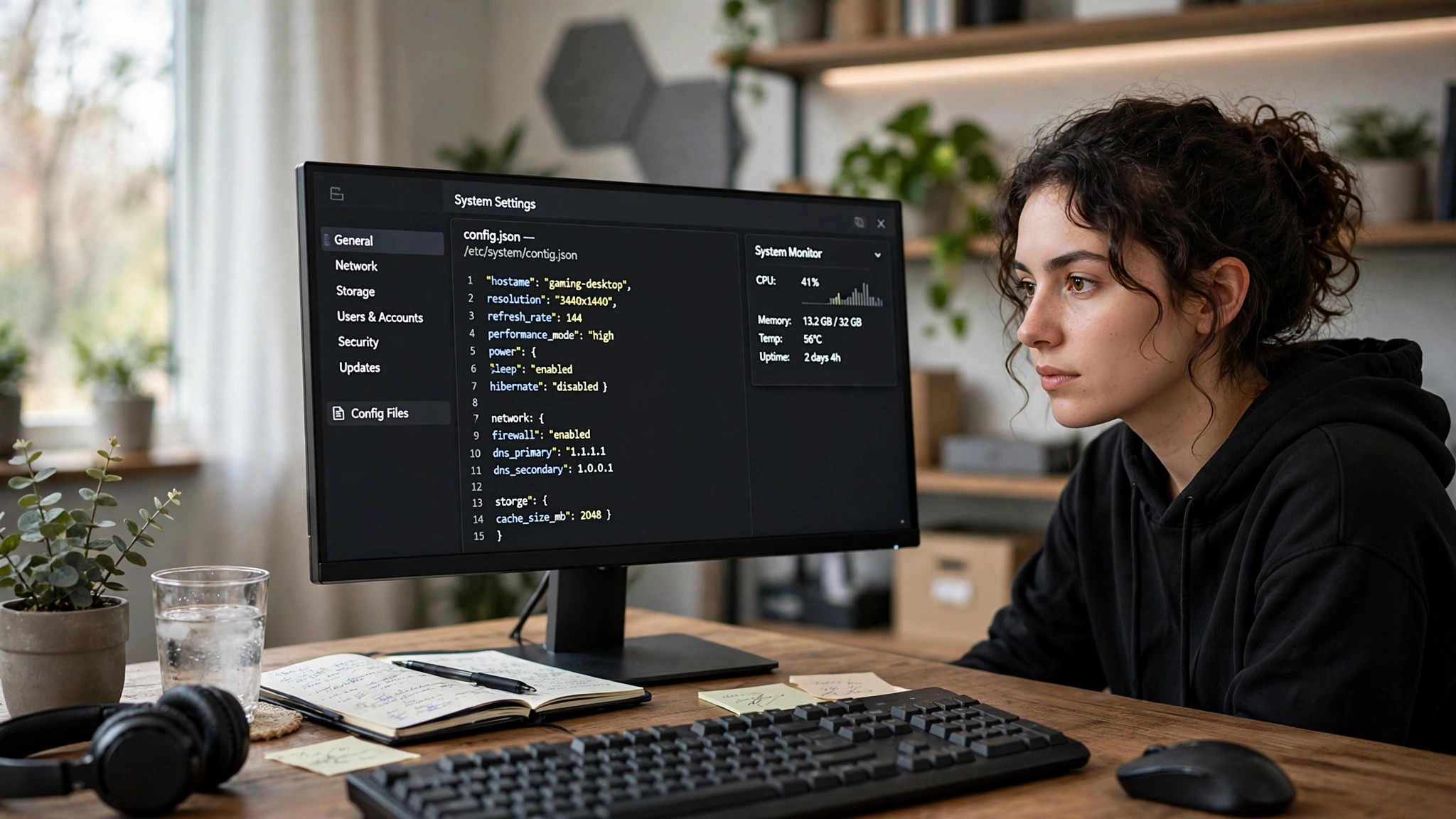
Corrupt shader caches and broken configuration files survive both verification and reinstallation, because they live outside the game's install folder. Look in %AppData%, %LocalAppData%, and Documents for folders named after the game or its developer, and rename (do not delete) the config or cache folder so you have a backup. Launch the game again and it will generate fresh defaults. If the fresh config fixes the crash, your old settings were the problem.
10. Do a clean boot to rule out software conflicts
If nothing above has worked, another program may be conflicting with the game. A clean boot starts Windows with only essential Microsoft services: open System Configuration (msconfig), go to the Services tab, tick "Hide all Microsoft services", click "Disable all", then disable startup items in Task Manager and restart. If the game launches under a clean boot, re-enable services in small groups until the crash returns — the last group contains the conflicting program.
11. Test your hardware: RAM, temperatures, and overclocks
Crashes across several different games, or crashes that survive a full reinstall, point at hardware. Start with overclocks: if your CPU or GPU is overclocked, return it to stock speeds and test again, since an unstable overclock often passes desktop use and fails only under game load. Next, check temperatures with a free tool such as HWMonitor — a GPU climbing past 90 degrees Celsius at launch can trigger protective shutdowns. Finally, test your RAM with Windows Memory Diagnostic and your drive with the manufacturer's diagnostic tool. Faulty RAM is a classic cause of random, unexplained crashes.
12. Reinstall the game — properly
Only now, after the targeted fixes, is a full reinstall worth doing. Uninstall the game, then manually delete leftover folders in its install location and in %AppData% and %LocalAppData% — but back up your saves first, and check where they live before deleting anything. Then reinstall from scratch, preferably on a different drive if you have one.
Quick-reference: match the symptom to the fix
| Symptom | Most likely cause | Try first |
|---|---|---|
| Crash with a .dll error | Missing runtime | Step 5: DirectX and Visual C++ |
| Black screen, then desktop | Driver or overlay conflict | Steps 3 and 6 |
| Crash after an update | Corrupt files or bad driver | Steps 2 and 3 |
| Crash in every game | Hardware or driver fault | Steps 3 and 11 |
| Crash only in one old game | Compatibility issue | Steps 4 and 9 |
Frequently asked questions
Should I reinstall Windows to fix a game crash? Almost never as a first step. It costs hours and usually turns out to be unnecessary — work through the steps above first, and only consider it if multiple games crash on a clean install with healthy hardware.
Will verifying game files delete my saves? No. Verification only checks the game's installed files; saves live elsewhere. Still, back up important saves before deleting config folders by hand (step 9).