You can have the fastest graphics card on the market and still lose every duel if your ping is sitting at 150 milliseconds. Ping is the round-trip time between your PC and the game server, and it decides how quickly the server registers your actions. The good news: high ping is rarely a mystery. It comes down to distance, routing, and congestion, and each of those has a practical fix. Work through these in order, starting with the biggest wins.
The short version: play on the closest server, connect your PC with an ethernet cable instead of Wi-Fi, and stop everything else on your network from hogging bandwidth while you play. Those three changes solve the overwhelming majority of high-ping complaints.
What ping actually measures
When your game shows a ping of 40 ms, it means a packet takes roughly 40 milliseconds to travel from your PC to the server and back. Your data passes through your router, your internet provider's network, and several intermediate hops before reaching the server, and every hop adds delay. Physical distance is the hard floor: data cannot travel faster than the speed of light through fibre, so a server on another continent will always have higher ping than one in your own country.
As a rough guide for what the numbers feel like in fast-paced games:
| Ping | What it feels like |
|---|---|
| Under 20 ms | Excellent. Effectively instantaneous; ideal for competitive shooters. |
| 20–50 ms | Good. Smooth and responsive for almost every genre. |
| 50–100 ms | Playable. Most players will not notice anything in casual play. |
| 100–150 ms | Noticeable delay. You will feel a beat behind in shooters and fighters. |
| Over 150 ms | Poor. Rubber-banding, delayed hits, and teleporting players. |
These are guidelines, not hard rules, and some games hide latency better than others. If your ping is consistently above 80 ms in a competitive game, the fixes below are worth your time. Note that ping and frame rate are different problems: stuttering or low FPS is a hardware issue, and our guide on how to show your FPS in any PC game will help you tell the two apart.

1. Play on the closest server
This is the single biggest factor you control. A server 500 km away will always beat one 5,000 km away, no matter what tweaks you apply. Most modern games pick a region automatically, but automatic is not always optimal, so check:
- Open the server browser or region setting. Many games let you sort servers by ping or choose a data centre manually. Pick the lowest stable number, not just the lowest single reading.
- Do not queue with friends on distant servers unless you accept the trade-off. If your squad plays on another continent, your ping will reflect that distance.
- Be wary of VPNs at this stage. A VPN almost always adds hops and latency. Only consider one later, for the specific routing problem described below.
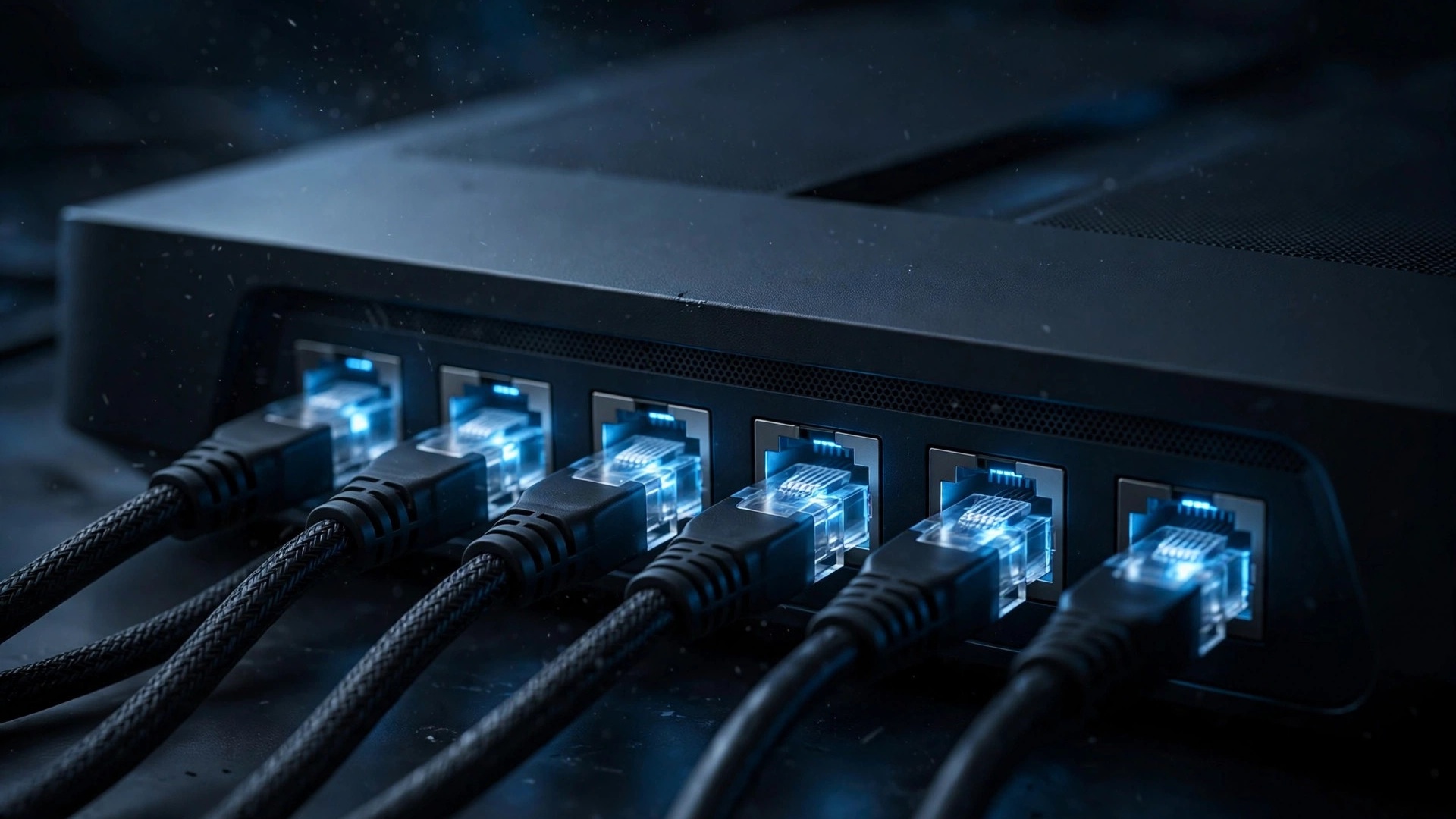
2. Plug in with an ethernet cable
Wi-Fi adds latency and, worse, jitter: unpredictable spikes that feel like random lag even when your average ping looks fine. Interference from neighbours' networks, microwaves, and walls all contribute. A wired ethernet connection to your router is the most reliable upgrade most players can make, and a long cable costs very little.
If running a cable is genuinely impossible, improve the wireless link instead: use the 5 GHz or 6 GHz band rather than the crowded 2.4 GHz band, move closer to the router, and consider powerline or MoCA adapters, which carry your connection over your home's electrical wiring or coaxial cables and are usually more stable than Wi-Fi for gaming.
3. Stop the bandwidth hogs
Games actually use very little bandwidth, often well under 1 Mbps. Your ping suffers when other traffic saturates your connection, because your game packets end up queueing behind someone else's 4K stream. Before you play:
- Pause downloads and updates. Steam, launchers, and Windows Update love to download in the background. Pause them or schedule updates outside your play sessions.
- Close streaming and video calls on your PC, and ask others in the household to do the same during competitive matches.
- Pause cloud sync and backups. OneDrive, Google Drive, Dropbox, and photo backups can saturate your upload, which hurts more than you would expect.
- Enable QoS on your router if it offers it. Quality of Service settings let you prioritise gaming traffic so a download cannot starve your game. The option is usually under advanced settings in your router's admin page.
4. Diagnose your connection properly
Guesswork wastes time. Spend ten minutes measuring, so you fix the right thing:
- Run a speed test while nobody else is using the network, then run it again while you are gaming. If speeds collapse under load, congestion is your problem.
- Test for bufferbloat. Bufferbloat is when your router's oversized buffers fill up under load and add hundreds of milliseconds of delay. Free online tests, such as the bufferbloat test at waveform.com, grade your connection and tell you whether this is happening.
- Check for packet loss. Open Command Prompt and run
ping -n 50 8.8.8.8. Occasional lost packets point to a flaky line or overloaded router; consistent loss needs your ISP's attention. - Restart your modem and router. Unplug them for a full 30 seconds. It is a cliché because stale sessions and overheated hardware genuinely cause problems.
| Symptom | Likely cause | Fix to try first |
|---|---|---|
| Ping spikes at the same time every evening | ISP congestion during peak hours | Play off-peak, or ask your ISP about it |
| High ping only on Wi-Fi | Wireless interference | Switch to ethernet or change Wi-Fi band |
| Ping fine, but rubber-banding | Packet loss or jitter | Restart networking gear, check cables |
| Everything is slow, not just games | Saturated connection or bufferbloat | QoS, pause background uploads |
5. Improve your home network setup
Small physical changes add up. Place your router centrally and elevated rather than in a cabinet, keep it away from thick walls and metal objects, and update its firmware, because manufacturers do fix latency bugs. If your router is several years old and struggles with many connected devices, a modern replacement with better queue management can genuinely lower your ping under load.
Also check your cabling: a damaged ethernet cable can silently cause packet loss. Swapping in a known-good Cat5e or Cat6 cable is a free test.
6. Consider a VPN only for bad routing
Sometimes your ISP routes your traffic on a scenic tour, sending packets hundreds of kilometres out of the way to reach a nearby server. In that specific case, a gaming VPN or a regular VPN with a well-placed server can find a shorter path and actually lower your ping. But this is the exception: for most players a VPN adds latency. Only try one if your ping to a nearby server is inexplicably high, use a free trial first, and measure before and after.
What will not lower your ping
- A faster download plan. Once you have enough bandwidth for the game itself, which is tiny, extra megabits do nothing for latency. Upgrade for downloads, not for ping.
- A faster GPU or CPU. That raises your frame rate, not your ping. If the game feels choppy rather than delayed, you have an FPS problem instead.
- Registry tweaks and "ping reducer" apps. Old tricks like disabling Nagle's algorithm target ancient TCP behaviour; modern games use UDP and see little or no benefit. Worse, sketchy optimiser tools are a classic malware vector.
- Closing background apps indiscriminately. It is network activity that matters, not CPU usage. A quiet text editor costs you nothing; a cloud backup uploading gigabytes costs you everything.
Lowering ping is mostly about removing obstacles between you and the server: shorter distance, a wired path, and a quiet network. Start at the top of this list, measure as you go, and stop when your ping is comfortably in the green. Chasing single-digit milliseconds beyond that is a hobby, not a necessity.