Digging out a classic from 2003 only to be greeted by a crash, a black screen, or an installer that refuses to start is a rite of passage for PC gamers. The good news is that old games fail on Windows 11 for a small set of predictable reasons, and each one has a known fix. This guide walks the full ladder: from the built-in compatibility tools, through forgotten Windows components, to the community patches and graphics wrappers that keep decades-old games alive.
The short version: start with Windows compatibility mode and running the game as an administrator, enable the legacy DirectPlay component, then look for a community patch on PCGamingWiki. If the game still misbehaves, a graphics wrapper like dgVoodoo2 or DXVK usually finishes the job. Before you experiment, back up your game saves so nothing you try can cost you progress.
Why old games break on Windows 11
Understanding the cause saves you from random tinkering. The most common culprits are:
- 16-bit installers. Many pre-2005 games shipped with 16-bit setup programs, which 64-bit Windows cannot execute at all. The game itself might run fine, but you cannot install it from the original disc.
- Retired graphics APIs. Games written for DirectX 7 or 8 expect graphics behaviour that modern drivers no longer emulate accurately. They may render with broken textures, crash on launch, or run at absurd speeds.
- DirectPlay is off. Microsoft's old multiplayer API is still included in Windows 11 but disabled. Games from the early 2000s that use it for networking simply fail.
- Dead DRM. Windows 10 and 11 block the old SafeDisc driver for security reasons, so disc-based games that rely on it will not start from the original media.
- Assumptions about your PC. Old games expect one CPU core, a 4:3 monitor, and administrator rights. A 16-core processor or a high-DPI 4K display confuses them.
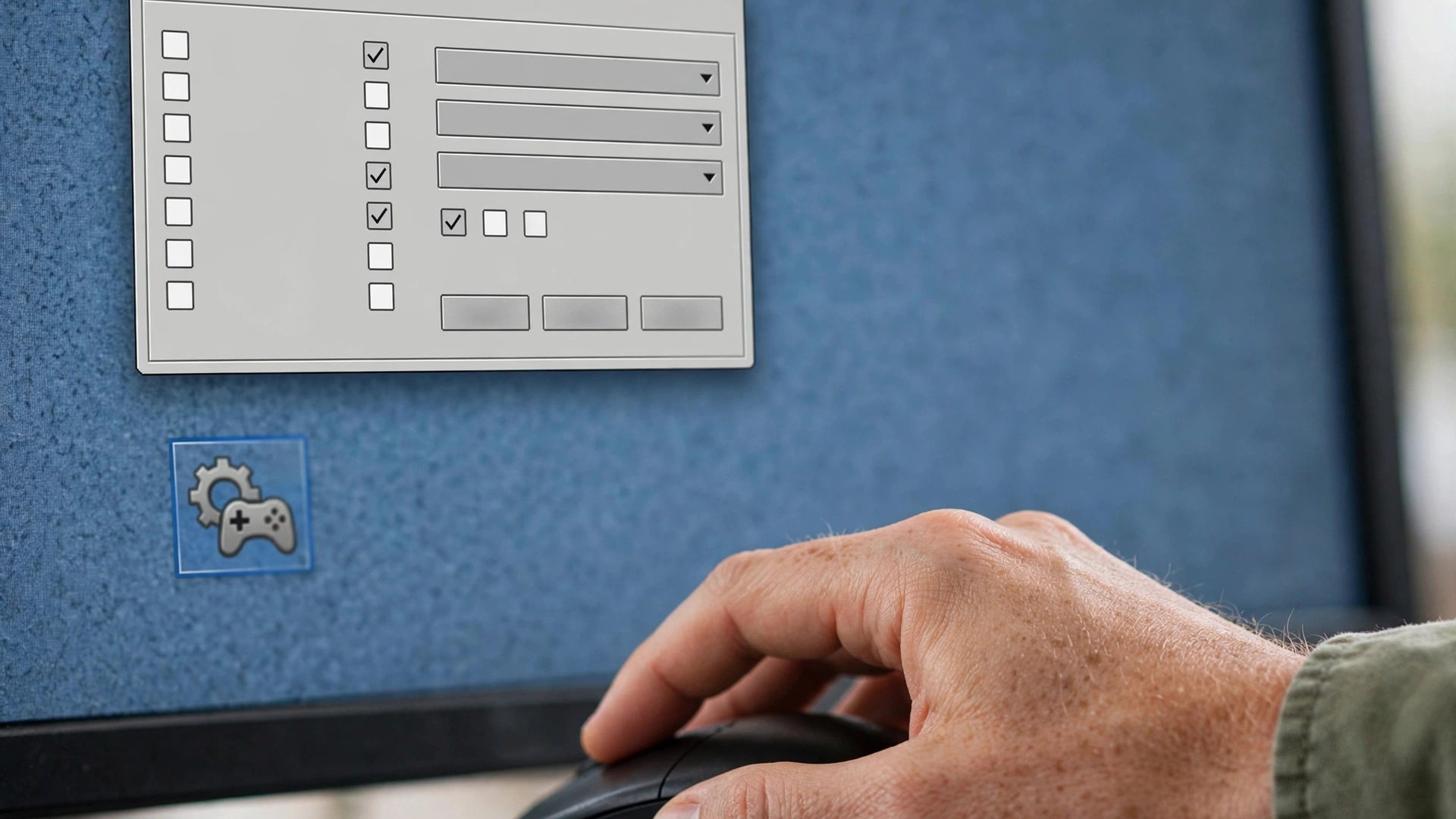
Step 1: Use Windows compatibility mode
Always start here, because it takes thirty seconds and genuinely fixes a surprising number of games:
- Find the game's executable file (not the desktop shortcut), right-click it, and choose Properties.
- Open the Compatibility tab and tick Run this program in compatibility mode for. For early-2000s games, try Windows XP (Service Pack 3) first; for later titles, try Windows 7.
- Tick Run this program as an administrator. Old games often wrote save files and settings into their own install folders, which modern Windows protects.
- If the game flickers, minimises itself, or stutters in fullscreen, also tick Disable fullscreen optimisations.
- Click Apply and launch the game from that same executable.
If guessing the right mode gets tedious, run the Program Compatibility Troubleshooter (search for it in the Start menu) and let Windows test settings for you.
Step 2: Enable the DirectPlay legacy component
Games from roughly 2001 to 2008 often need DirectPlay, which ships with Windows 11 but stays disabled. To switch it on:
- Open the Start menu and search for Turn Windows features on or off.
- Expand Legacy Components and tick DirectPlay.
- Click OK and restart your PC if prompted.
This single change revives a long list of early-2000s titles whose multiplayer menus and even single-player launches silently failed without it.
Step 3: Check for community patches before anything drastic
The PC gaming community has spent two decades fixing old games, and there is a good chance your game already has a maintained solution. Search PCGamingWiki for the game's title: it documents known issues on modern systems and links to the essential patches, widescreen fixes, and frame-rate fixes for each game.
Typical finds include unofficial patches that fix crashes on modern CPUs, mods that add proper widescreen and high-resolution support, and replacements for broken copy protection on games you legitimately own. Install community fixes from their official project pages or well-known modding hubs, and read each patch's instructions, because order of installation sometimes matters.
Step 4: Wrap the old graphics API with dgVoodoo2, nGlide, or DXVK
When a game launches but renders incorrectly, crashes when 3D scenes load, or refuses to use your GPU properly, the problem is usually the ancient graphics API it was written for. Wrappers translate those old calls into something modern Windows understands, with no changes to the game itself. You drop a few files into the game's folder, and it works.
| Game era | Recommended wrapper | What it fixes |
|---|---|---|
| DOS-era games (early 90s and older) | DOSBox-X or DOSBox Staging | Full DOS emulation with accurate sound and timing |
| 3dfx Glide games and early DirectX (up to DirectX 8) | dgVoodoo2 or nGlide | Broken textures, crashes, and missing effects in late-90s 3D games |
| DirectX 9, 10, and 11 games | DXVK | Stuttering, crashes, and poor performance on modern drivers |
dgVoodoo2 is the star for late-90s classics: it wraps Glide and early DirectX up to version 8, adds proper scaling and antialiasing, and can even force old games into a borderless window, which solves many alt-tab crashes. nGlide is a lighter alternative if your game specifically used 3dfx Glide. DXVK translates DirectX 9 through 11 calls to Vulkan and is famous for smoothing out stutter in mid-2000s to early-2010s games on modern drivers.
Using a wrapper is usually as simple as copying its .dll files into the folder containing the game's executable. Each project documents exactly which files each game needs, so follow its readme rather than guessing.
Step 5: Consider the modern re-release
If the original disc or download fights you at every step, check whether the game is sold on GOG. GOG's versions of classic games ship pre-patched with community fixes, compatibility tweaks, and extras like soundtracks already applied. Rebuying a five-dollar classic is often cheaper than spending an evening wrestling with a 16-bit installer.
The same logic applies to games with official remasters. And if your copy came from a modern storefront rather than a disc, verifying the integrity of the game files is a quick sanity check before you blame compatibility.
Step 6: Tame display and input quirks
Even running games can misbehave on modern displays. Common fixes:
- Stretched image: old 4:3 games get stretched to fill widescreen monitors. Set your GPU or monitor to preserve the aspect ratio, or use the wrapper's scaling options.
- Game runs too fast: some classics tie their speed to the CPU clock. Community patches usually fix this; as a stopgap, limiting the game's CPU affinity to one core in Task Manager sometimes helps.
- Tiny UI or mouse issues on 4K: right-click the executable, open Properties, and under the Compatibility tab use Change high DPI settings to override scaling behaviour.
- Alt-tab crashes: run the game in a borderless window through dgVoodoo2 or a similar tool instead of exclusive fullscreen.
What not to do
- Do not download random DLL files from shady sites to fix missing-file errors. Get wrappers and patches from their official project pages only.
- Do not permanently disable your antivirus or User Account Control. Old games do not need that, and it leaves your PC exposed.
- Do not reach for cracks first. They are a last resort for games you own whose DRM is genuinely dead; patches, wrappers, and re-releases solve the problem legitimately in the vast majority of cases.
Work through this ladder in order and you will find that most classics from the last thirty years run happily on Windows 11. The golden rule is simple: let the community's twenty years of fixes do the heavy lifting before you start hacking at the game yourself.