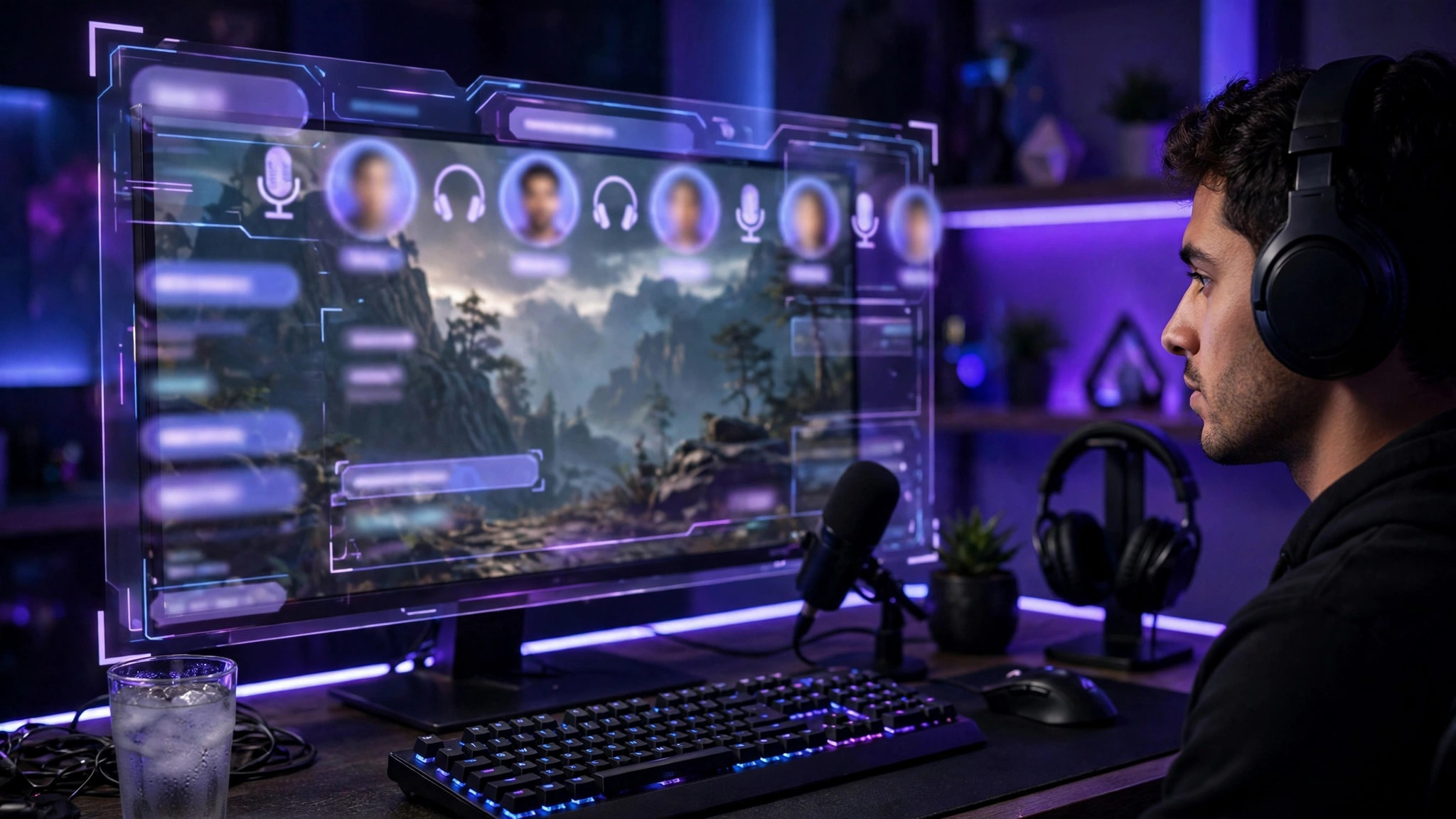
Discord's in-game overlay is one of those features you only notice when it disappears. One day you can see who is talking, take a call, and mute yourself without tabbing out — the next, pressing Shift plus backtick does nothing, and your voice controls are trapped behind Alt-Tab. The good news is that a missing overlay almost always has a simple cause: a disabled setting, a missing permission, or another program getting in the way.
Work through the fixes below in order. Most people find the problem in the first three sections, so do not skip ahead to reinstalling Discord until you have checked the basics.
1. Make Sure the Overlay Is Actually Enabled
Discord's overlay is off by default for some installations, and it can be switched off by an update or by accident. Check the global setting first, then the per-game setting.
- Open Discord and click the gear icon next to your username to open User Settings.
- Click
Game Overlayin the left sidebar. - Turn on
Enable in-game overlay. - Still in Game Overlay settings, confirm the overlay lock keybind. The default is Shift + ` (backtick, the key above Tab). If you changed it and forgot, set it back to something you will remember.
- Click
Registered Gamesin the sidebar. Find your game in the list and make sure the overlay toggle next to it is on. If the game is not listed, launch it first, then return here — Discord only registers games it has seen running.
If the game shows as registered but the overlay still does not appear, toggle the per-game overlay off and back on, then restart both Discord and the game.
2. Run Discord as Administrator
This is the single most common fix, and the reason is simple: if your game runs with administrator privileges and Discord does not, Windows will not let Discord draw its overlay on top of the game. The two programs need to run at the same privilege level.
- Close Discord completely. Right-click the Discord icon in the system tray and choose Quit Discord — simply closing the window leaves it running in the background.
- Right-click the Discord shortcut and choose
Run as administrator. - Launch your game and test the overlay.
If that fixes it, make the setting permanent: right-click the Discord shortcut, choose Properties, open the Compatibility tab, tick Run this program as an administrator, and click OK. Alternatively, run both programs normally. See also our guide to fixing lag and stutter in PC games.
3. Check for Conflicting Overlays and Software
Discord's overlay competes for the same screen space as several other programs. When two overlays try to hook into a game at once, one of them usually loses — and sometimes the game itself crashes or stutters.
- Steam overlay: in Steam, go to Settings, then In-Game, and temporarily uncheck
Enable the Steam Overlay while in-gameto test. - GeForce Experience or NVIDIA App overlay: press Alt + Z, open Settings, and turn off the in-game overlay.
- AMD Adrenalin overlay: open AMD Software, go to Settings, then Preferences, and disable the in-game overlay.
- Xbox Game Bar: press Windows + I, go to Gaming, then Xbox Game Bar, and turn it off for testing.
- Screen-recording and FPS tools such as OBS, MSI Afterburner with RivaTuner, or Fraps can also block the overlay. Close them one at a time and retest.
Once you find the culprit, you do not have to uninstall it — just decide which overlay you actually use and disable the other. Running two overlays at once is rarely worth it.
4. Fix Antivirus, Firewall, and Display Problems
Security software sometimes flags Discord's overlay hook as suspicious behaviour and silently blocks it. This is especially common after an antivirus update.
- Open your antivirus settings and look for blocked applications or a gaming mode. Add Discord as an allowed or trusted application.
- Check Windows Security: go to Virus and threat protection, then Protection history, and look for any Discord entries that were blocked or quarantined.
- If you use a third-party firewall, make sure Discord is allowed through it for both private and public networks.
Display settings matter too. Try switching the game to borderless windowed mode — this alone fixes the overlay in many titles. On multi-monitor setups, set your gaming monitor as the primary display in Windows Settings under System, then Display.
5. Diagnose by Symptom
Different symptoms point to different causes. Use this table to jump to the most likely fix for what you are seeing.
| Symptom | Likely cause | Fix to try first |
|---|---|---|
| Overlay never appears in any game | Global overlay setting off, or Discord not running as administrator | Sections 1 and 2 above |
| Overlay works in some games but not others | Per-game toggle off, or that game blocks third-party overlays | Registered Games toggle; check whether the game supports overlays at all |
| Overlay appears but is blank or frozen | Conflicting overlay or hardware acceleration problem | Disable other overlays; toggle hardware acceleration in Discord under Advanced settings |
| Overlay appears, then the game crashes | Hook conflict with recording software or antivirus | Close OBS, Afterburner, and similar tools; whitelist Discord in antivirus |
| Overlay keybind does nothing | Keybind changed or captured by another program | Reset the overlay lock keybind in Game Overlay settings |
6. Reset Discord Settings and Reinstall as a Last Resort
If nothing above works, the problem may be corrupted Discord settings or a broken installation. Try these in order, testing the overlay after each step.
- Toggle hardware acceleration: in Discord User Settings, go to Advanced and switch hardware acceleration off, then restart Discord. If the overlay returns, your graphics driver and Discord were disagreeing — leave it off or update your GPU drivers and try turning it back on.
- Clear Discord's cache: close Discord fully, press Windows + R, type
%appdata%/discord, and delete the Cache, Code Cache, and GPUCache folders. Restart Discord. - Reinstall cleanly: uninstall Discord, delete the
%appdata%/discordand%localappdata%/Discordfolders, then download the latest installer from Discord's official site and install fresh. Sign in, re-enable the overlay in settings, and test before restoring any custom keybinds.
A clean reinstall resolves nearly every remaining case.
7. When the Overlay Simply Cannot Work
Some games deliberately block third-party overlays. Competitive titles with aggressive anti-cheat systems, such as Valorant with Vanguard, may prevent Discord's overlay from hooking into the game — this is by design, not a bug on your end. In these games the overlay may never appear no matter what you try, and attempting to force it with third-party tools risks an anti-cheat ban. Do not do that.
For blocked games, the practical workaround is a second screen or a phone or tablet running Discord beside you, so you can still see who is talking. If voice chat itself is the problem rather than the overlay, check your input device and permissions — our guide to fixing a microphone that is not working in PC games covers that side of things in detail.
Start at the top, test after each change, and you will have your overlay back without reinstalling Windows or replacing hardware — this is a software problem, and software problems have software fixes.